
How campaign welcome screens work
When a visitor opens your campaign link (https://attlas.so/your-chat?origin=campaign-name):
- Dedicated headline: A prominent welcome sentence replaces your standard chat description, matching the ad promise.
- Targeted triggers: The visitor only sees the questions or actions you chose for this ad, rather than your entire menu.
- Distraction-free experience: External links and social icons stay hidden so visitors focus on your message.
- Automatic form launch: You can automatically start a conversation or lead form the moment the visitor lands on the screen.
- Menu unlock after conversion: Once the visitor submits their contact details or books a meeting, the full chat menu unlocks automatically.
The Campaigns section appears in your chat sidebar once you connect the Meta Conversions API in Settings > Integrations. Connecting Meta allows Attlas to report leads and bookings directly to your ad manager.
Creating a campaign
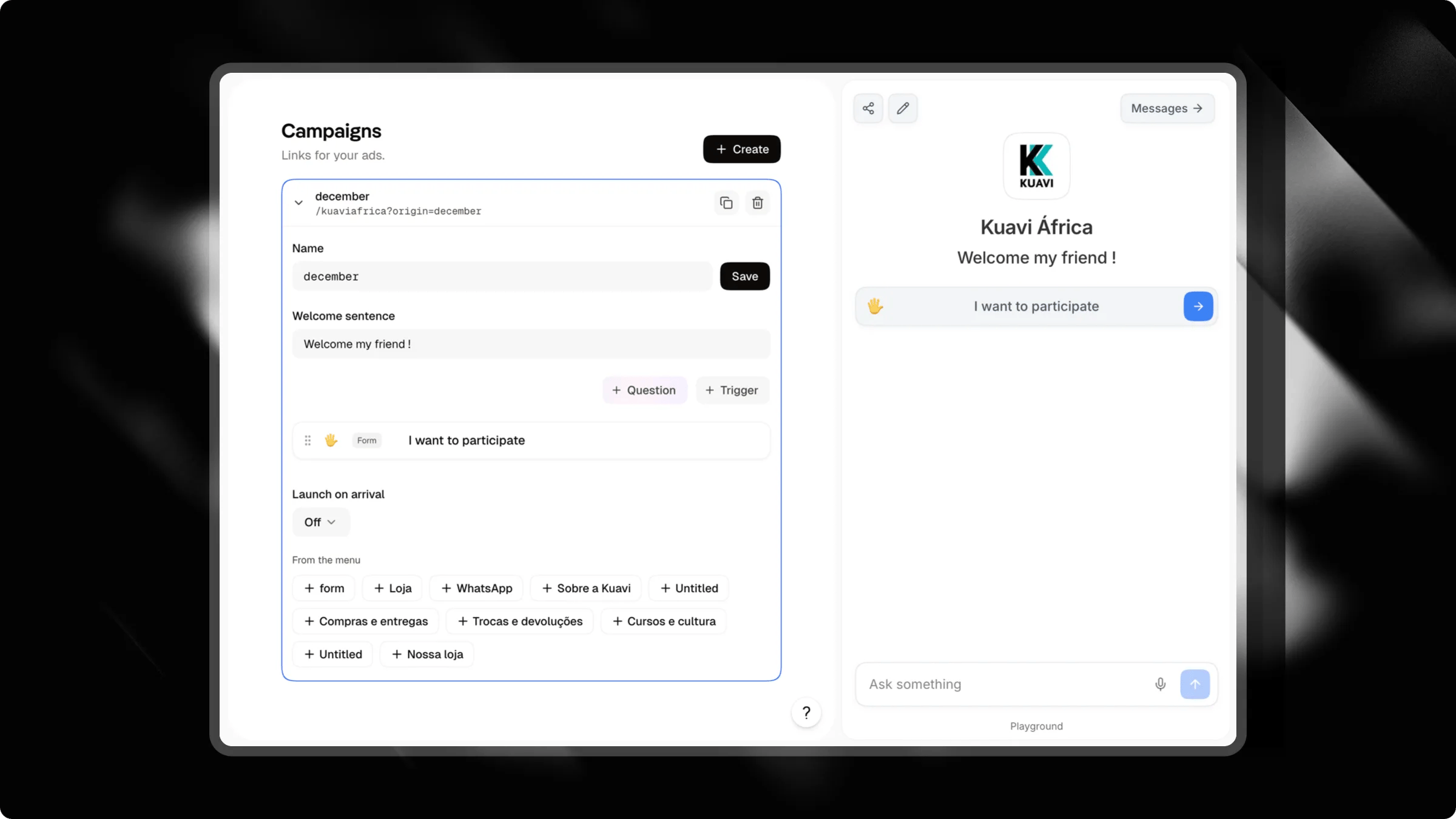
- In your Attlas dashboard, select your chat and click Campaigns in the sidebar.
- Click Create in the top right corner.
- Choose a descriptive Name (such as
black-fridayorspring-audit). Attlas uses this name in your ad URL. - Enter your Welcome sentence. Keep it punchy and aligned with your ad copy.
- Add the triggers you want to display for this ad.
- (Optional) Select a form in Launch on arrival to start the questionnaire immediately.
- Click Save, then click the Copy link icon next to your campaign name.
- Paste the link into your Meta Ads Manager as the destination URL.
Configuration settings
Managing triggers for an ad
You can build a campaign screen without recreating triggers from scratch:- Create new triggers: Use the built-in trigger editor to add questions, forms, links, or media specific to this campaign.
- Copy from the menu: Click any trigger under From the menu to duplicate an existing trigger into this campaign. Attlas copies the trigger along with all of its nested children.
- Independent edits: Modifying or deleting a copied trigger in your campaign never affects the original in your main menu.
- Reusable across campaigns: Because triggers are copied rather than moved, the original trigger remains in From the menu so you can reuse it in several campaigns.
Tracking performance
Every campaign row displays performance statistics from the last 30 days:- Views: Total number of visits received through this campaign link.
- Conversations: Visitors who started chatting or tapped a question trigger.
- Leads: Visitors who submitted contact information or booked a calendar meeting.
- Conversion rate: Percentage of visitors who completed a lead form or booking.
- Top trigger: The specific question or button visitors tapped the most.