

The Meta Conversions API integration is available on paid plans.
Why server-side tracking matters
Unlike traditional web tracking that relies on a browser pixel, Attlas handles conversion tracking entirely on the server:- No client-side tracking script: Your chat remains fast and lightweight, with zero external tracking scripts loaded in the browser.
- Privacy and SEO friendly: No tracking cookies are set by the chat, avoiding intrusive cookie consent banners and preserving optimal crawlability for search engines.
- Reliable tracking: Server-side events bypass ad blockers and browser privacy restrictions that often block browser pixels.
- First-touch attribution: Attlas records the original Meta ad click (
fbclid) when the visitor arrives, keeping accurate attribution even after an extended conversation. - Clean test data: Conversations in your dashboard playground or conversations marked as internal never send events to Meta, preventing test conversations from skewing your campaign metrics.
Supported conversion events
Attlas automatically maps visitor actions to Meta standard events:Contact details (email, phone, first name, and country) are normalized and hashed using SHA-256 before being sent to Meta, in full compliance with Meta’s customer data privacy requirements.
Campaign and UTM tracking
If your ad campaign directs traffic to a specific campaign channel or includes tracking parameters, Attlas automatically forwards them to Meta:- Campaign Origin: When visitors land via a dedicated campaign link (
?origin=<campaign_id>), the campaign identifier is included in the event custom data. To learn how to build tailored welcome screens and conversation starters for your ads, see our Campaigns guide. - UTM Campaign: Any
utm_campaignparameter captured upon landing is attached to the conversion event for easy breakdown in Meta Events Manager.
How to set up Meta Conversions API
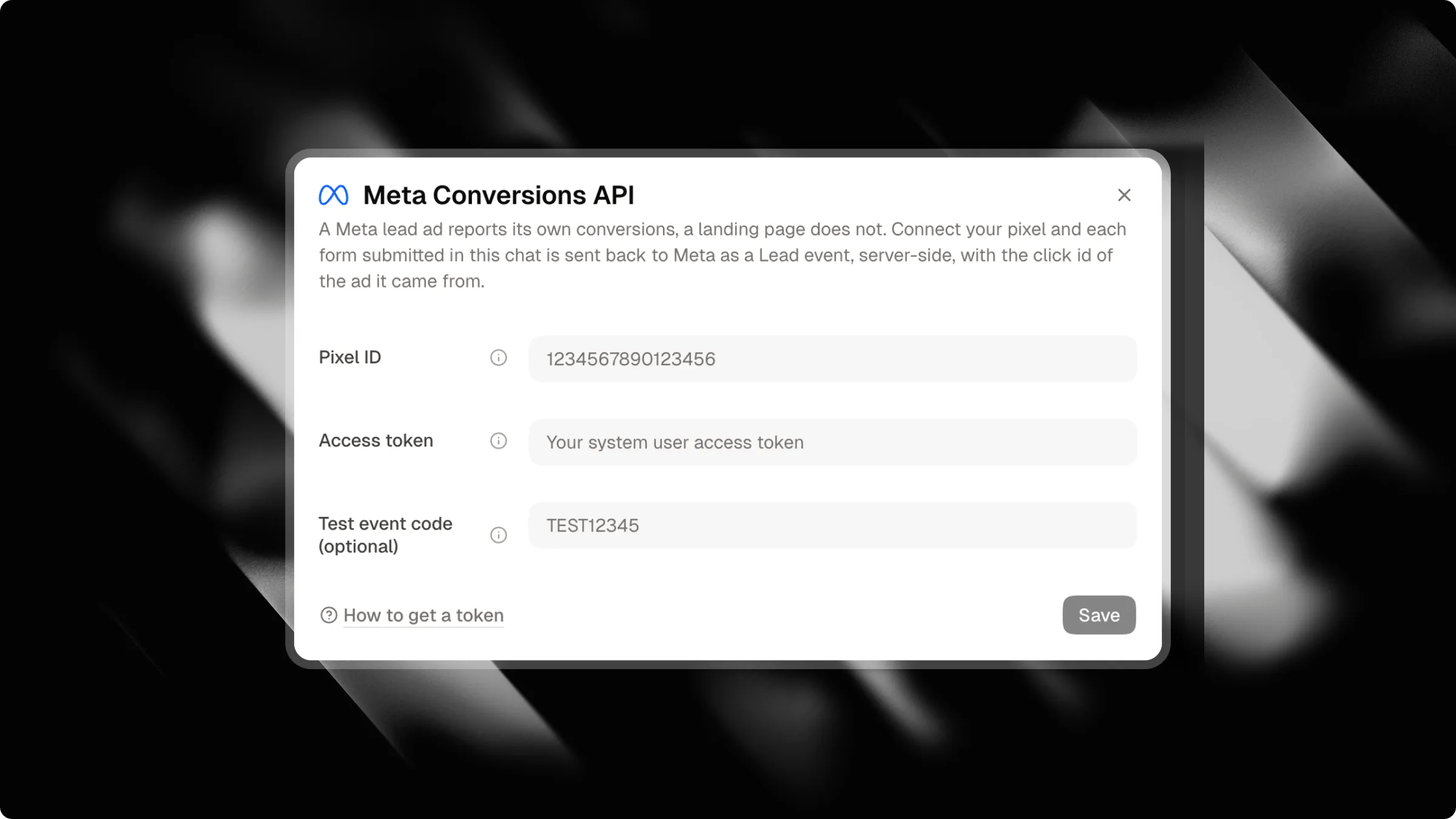
- Open your Chat Settings in the Attlas dashboard.
- Select the Integrations tab.
- Locate the Meta Conversions API card and click Connect.
- Fill in your Pixel ID and Access token.
- (Optional) Enter a Test event code if you want to verify events before going live.
- Click Save. If a test event code is provided, Attlas verifies your credentials with Meta directly before saving.
Configuration settings
Testing your integration
Once your connection is saved:- Go to your Meta Events Manager and open the Test events tab for your pixel.
- If using a test code, make sure the same code is saved in your Attlas integration dialog.
- In Attlas, open the Meta integration dialog and click Send a test event.
- Check the Meta Events Manager screen. You will see an incoming
Leadevent appear within seconds.