

- “How many visitors did my chat get this week, and where did they come from?”
- “Which questions did my chat answer badly?”
- “Add three suggested questions about my opening hours.”
- “Switch to a darker theme.”
Each request you send to the agent uses one agent message. Your plan includes a monthly allowance:
When you run out, the agent stops answering until your allowance renews. You can upgrade your plan to get more.
Open the agent
- Open one of your chats in the dashboard.
- Click Agent in the top bar. On mobile, tap the round Agent button at the bottom of the screen.
Only members of your workspace can use the agent. A member with the Viewer role can ask questions but can’t change anything.
Start from your top improvements
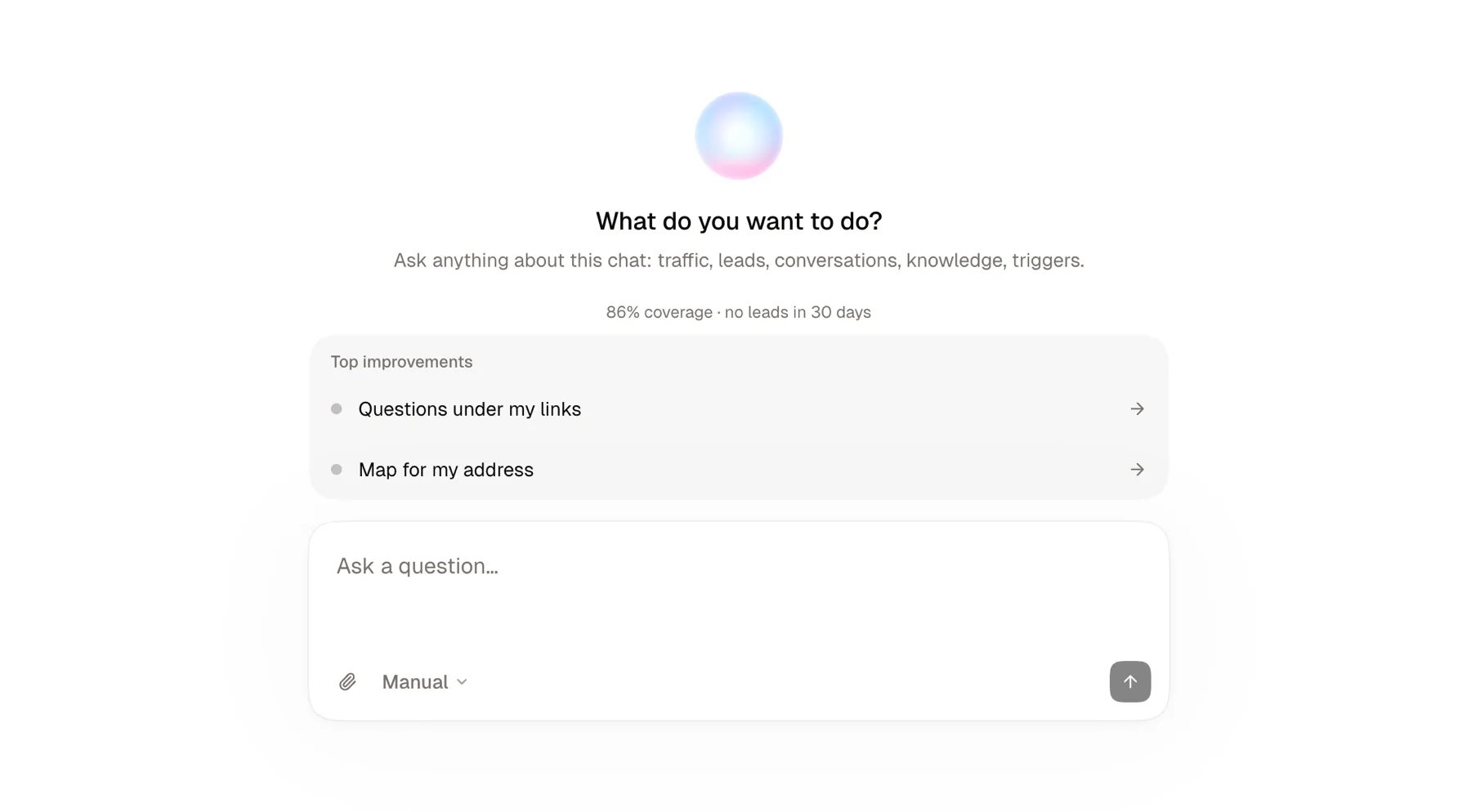
When you open a new conversation, the agent shows Top improvements: the three most useful things missing from your chat, such as knowledge, a greeting, or suggested questions. You also see your coverage rate and the number of leads from the last 30 days. Click an improvement and the agent walks you through it, one question at a time.Choose how changes apply
The mode selector sits in the message box.What the agent can do
The agent can also advise you: which feature fits your goal, how to organize your knowledge, which questions your visitors expect.
Some settings stay in the dashboard. The agent points you to the right screen when you ask for:
- deleting anything,
- changing your chat’s URL,
- connecting an integration (Google Calendar, Notion, a database, a custom domain, a webhook),
- access mode, password or visibility,
- your plan, billing and workspace members.