
Key benefits
- Pages and Databases support: Import individual pages, nested page hierarchies, or entire Notion databases.
- Full database sync: Import up to 500 items per database with row properties and optional page body content.
- Automatic background sync: Updates, new entries, and deletions made inside Notion pages and databases automatically sync to your chatbot’s knowledge base.
- Instant manual refresh: Trigger an immediate on-demand refresh anytime using the Refresh Database option.
- Automatic cleanup: If you delete or archive a page or database entry in Notion, Attlas automatically removes it from your sources.
The Notion integration is available on paid plans. Make sure your subscription includes Integrations before getting started.
How to connect
Connections are established per chat, meaning you can connect different Notion workspaces or pages to different chats.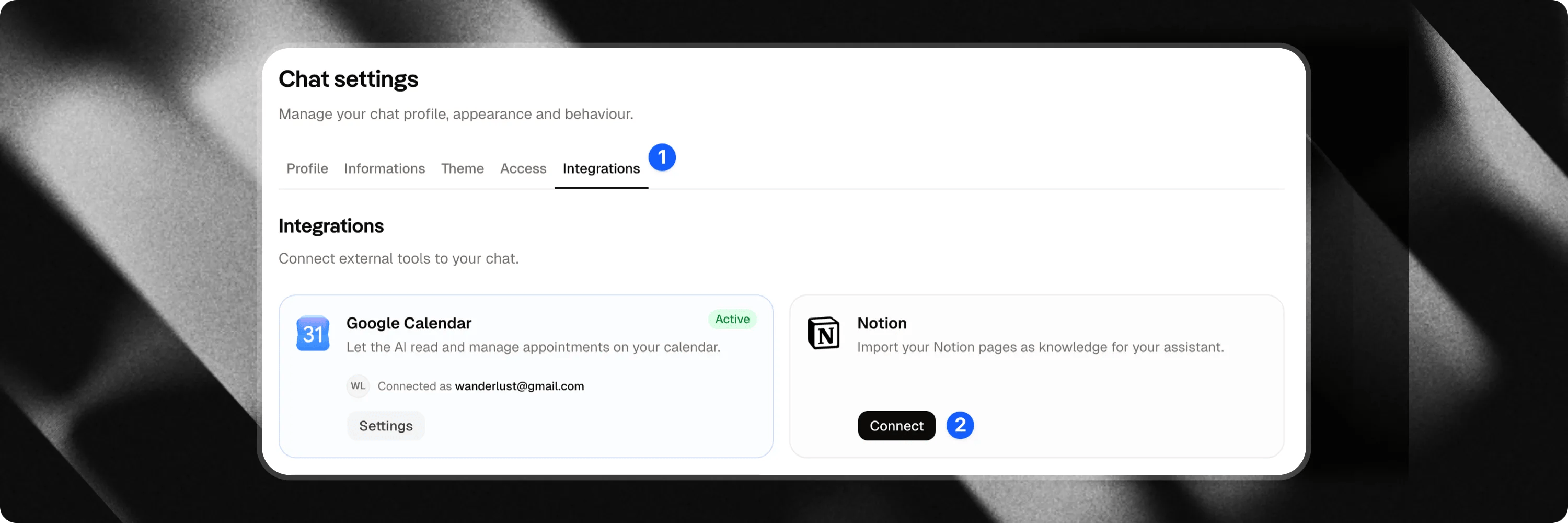
- Select the chat you want to configure from the sidebar menu.
- Go to the chat’s Settings.
- Click on the Integrations tab.
- Locate the Notion card and click Connect.
- Log in to your Notion account and authorize access. You can select specific pages, databases, or grant access to your entire workspace.
Importing content: Pages vs Databases
When clicking Import Pages on the Notion card (or selecting Add from Notion inside the Knowledge section), you can choose between two import modes:1. Pages tab (Individual & Nested Pages)
Select specific pages or subpages from your Notion workspace to add to your knowledge base.- Perfect for standard documentation, guides, FAQs, and standalone notes.
- Ingestion occurs immediately for all selected pages.
2. Databases tab (Full Database Sync)
Import an entire Notion database (such as a product catalog, CRM records, team wiki database, or article repository) directly into your chat.- Include Page Content: Check this option to import both database row properties and the full page body content of each entry.
- Recommended capacity: Optimised for smooth synchronization of up to 500 items per database, ensuring fast ingestion and high retrieval accuracy.
- Automatic Sync & Instant Refresh: All imported databases are automatically synchronized in the background. If you want to force an immediate update right after making changes in Notion without waiting for the next background cycle, simply click Refresh Database.