

Key benefits
- Zero booking friction: Visitors can book a meeting instantly within the flow of their conversation. No need to click external links, sign up for services, or leave your website.
- Always in sync: The chat checks your calendar’s busy slots in real time before proposing any time to visitors.
- Dynamic, context-aware scheduling: You can tell the chat exactly what kind of meetings you want to host and what questions to ask. The AI adapts the conversation based on your instructions.
- Automatic calendar invites: Once a booking is confirmed, the chat automatically schedules the meeting in your Google Calendar and sends a calendar invite with a cancellation link to the visitor.
- Effortless lead generation: When a visitor books a meeting, they are automatically saved as a lead with their contact details in your database, giving you a structured pipeline.
- Instant cancellation management: Both you and your visitors can cancel meetings easily. Visitors can request a cancellation directly through the chat and you can manage all upcoming meetings from your dashboard.
Contact capture and sync
Every time a visitor schedules a meeting, Attlas Chat automatically captures their details to help you build your lead pipeline: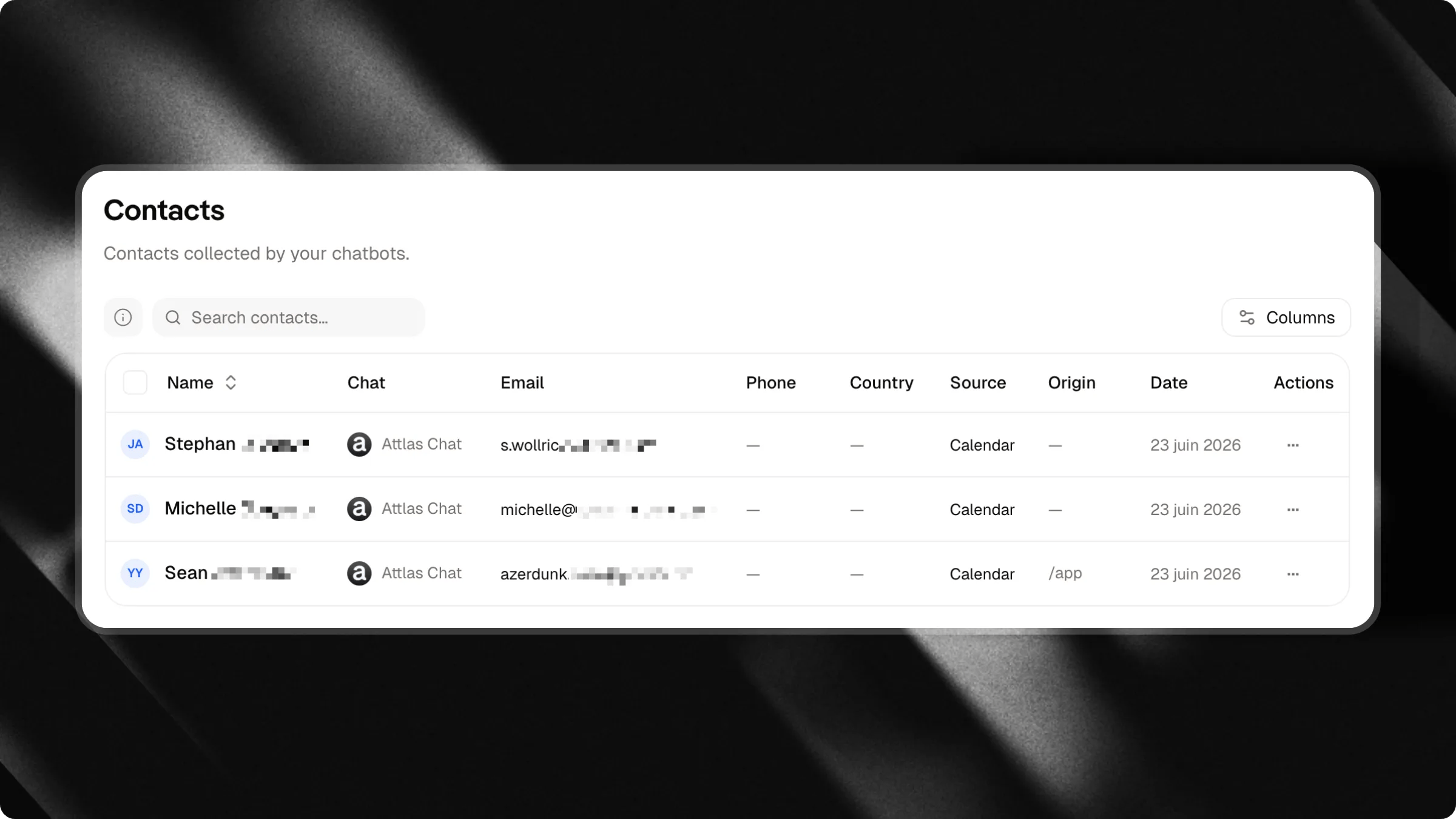
- Required credentials: The assistant always gathers at a minimum the visitor’s email and name before finalizing any appointment.
- Lead database: The gathered visitor information (first name, last name, email, phone number if required and conversation context/notes) is automatically saved or updated in your workspace database.
- Contacts dashboard: All leads captured through your calendar integration are grouped and viewable in one place on your dashboard under the Contacts.
How it works
Here is how the system orchestrates a seamless booking experience:- Checking availability: The visitor asks to schedule a meeting. The Attlas Chat instantly runs a background check against your Google Calendar’s busy times and your custom work hours.
- Collecting details: The chat gathers the visitor’s name, email address and any additional details you requested (like company size or project goals).
- Booking the event: The AI books the meeting. Under the hood:
- A calendar event is created in your Google Calendar.
- A calendar invitation is sent to the visitor’s inbox.
- The visitor’s details are saved in your database as a new lead.
- Displaying the confirmation: A clean, visual booking card appears in the chat interface confirming the time and date of the meeting.
How to set it up
Getting started is simple and takes less than two minutes.1. Connect your Google Calendar
- Navigate to your Settings dashboard.
- Select the Integrations tab.
- Find the Google Calendar card and click Connect.
- Log into your Google account and grant the necessary permissions to manage your calendar events.
- Select which calendar you want your chat to book events on (e.g., your primary email calendar).
2. Set your availability and rules
Configure your booking preferences directly in your dashboard. Any changes you make are saved automatically: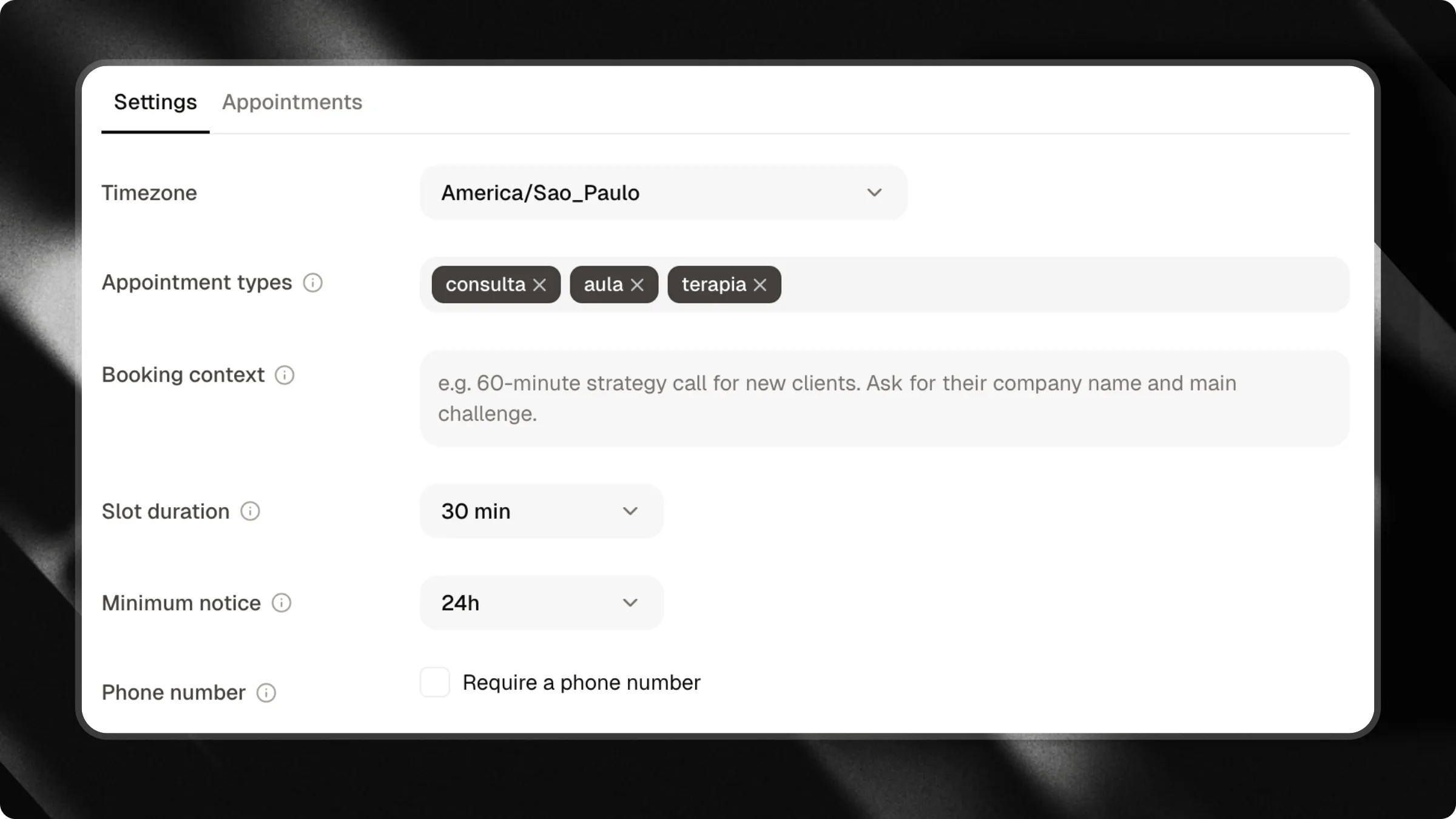
- Timezone: Set your operating timezone.
- Appointment Types: List the types of events or topics (e.g., Discovery Call, Product Demo) available for visitors to choose from.
- Booking Context: Describe the type of meeting to the chat. For example: “This is a 30-minute discovery call. Please ask the visitor for their company website and what main challenge they are facing.”
- Meeting Duration: Choose slot durations (e.g., 15, 30, 45, 60, or 90 minutes).
- Minimum Notice: Avoid last-minute surprises by setting a minimum notice period (e.g., no bookings less than 24 hours in advance).
- Require Phone Number: Enable this option if you want to make phone numbers mandatory for all bookings.
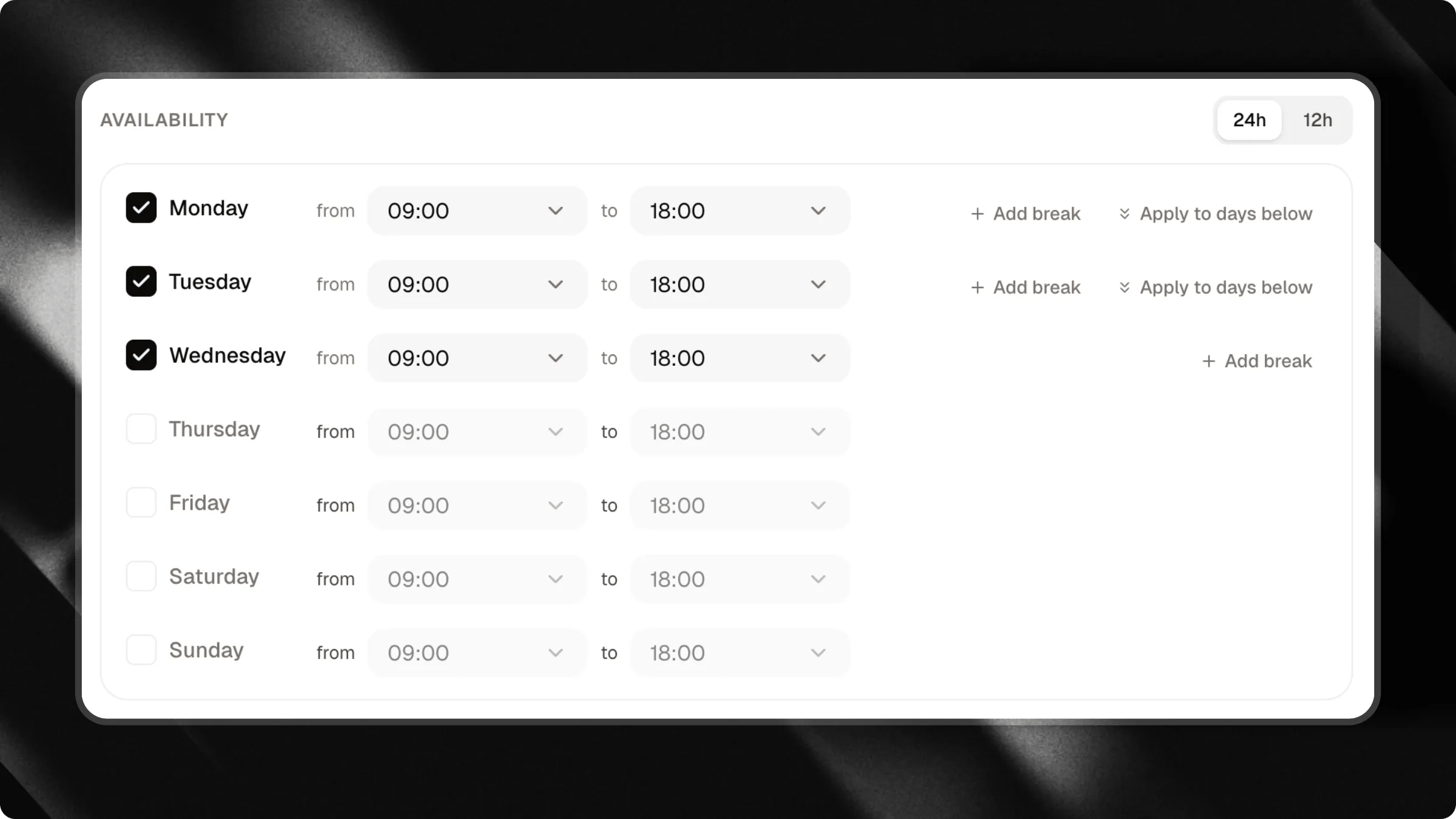
- Weekly Schedule: Choose the days of the week and hours you are available to meet.
3. Managing appointments
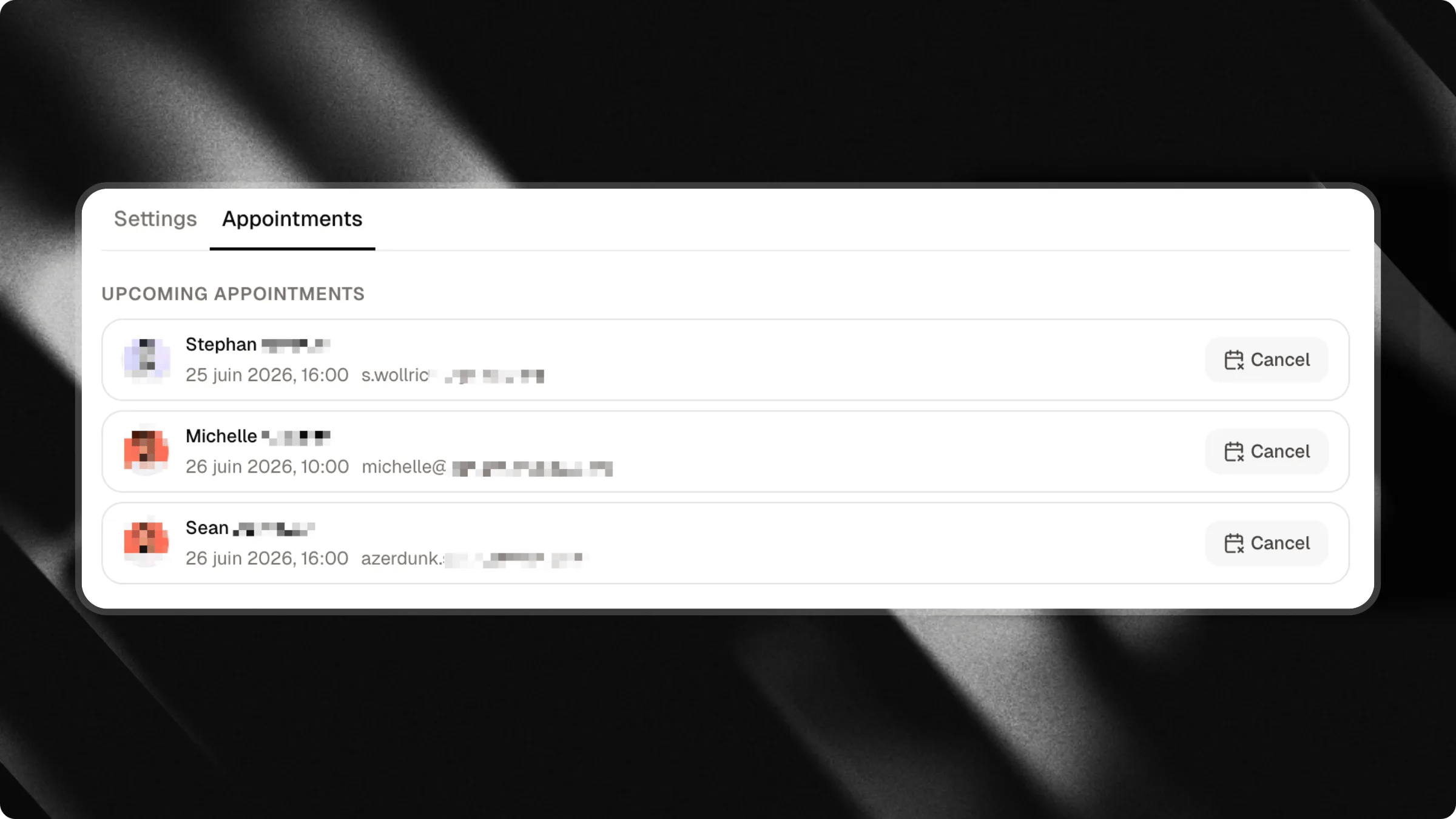
- View upcoming meetings: You can view all confirmed upcoming appointments, visitor details and scheduled times directly from the Appointments section in your settings.
- Cancel meetings: Need to reschedule or cancel? Click Cancel next to any meeting in your dashboard. The system will automatically remove it from your Google Calendar, notify the visitor and update your records.
- Visitor-led cancellations: If a visitor returns to the chat and asks to cancel their meeting, the Attlas Chat will ask for their email address, verify their scheduled event and cancel it for them instantly.