
Key benefits
- Automatic AI awareness: As soon as Bandsintown is connected, your AI assistant has access to your concert schedule and answers visitor inquiries naturally in conversation.
- Automated tour sync: Your upcoming shows are automatically fetched from Bandsintown, keeping your schedule accurate without manual updates.
- Native chat rendering: Concert dates appear as interactive cards in the chat window, complete with venue details, location, and ticket options.
- Dedicated trigger pill: You can highlight your tour dates on your chat page using the dedicated Concerts trigger.
- Privacy and security: API keys remain encrypted on the server and are stripped of tracking IDs before any links reach the visitor.
How to set up Bandsintown
- Navigate to your Chat Settings in the Attlas dashboard.
- Select the Integrations tab.
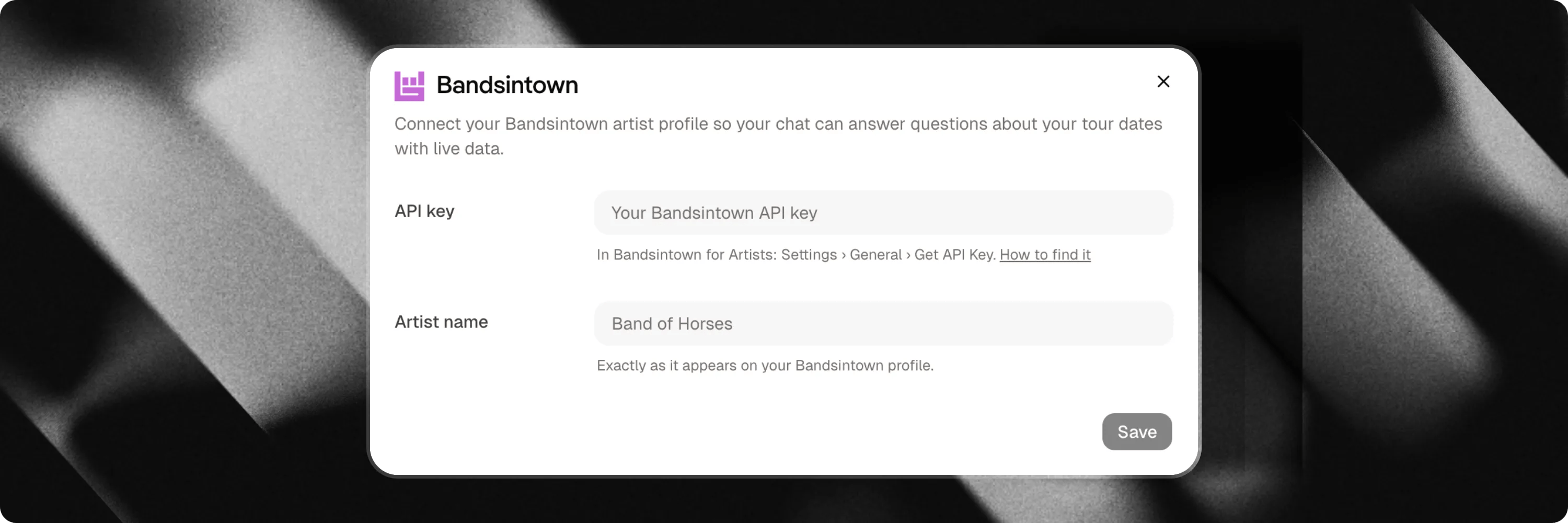
- Locate the Bandsintown card and click Connect.
- Enter your Artist Name (as listed on Bandsintown) and your Bandsintown API Key.
- Click Save to verify the credentials and activate the integration.
You can get an API key from your Bandsintown for Artists account under Settings > General > Get API Key. For details, visit the Bandsintown API Documentation.
Attlas verifies your artist profile during setup to ensure your artist name and API key resolve correctly before saving.
Adding a Concerts trigger
Once Bandsintown is connected, you can add a live tour schedule trigger to your chat page:- Go to the Triggers tab in your chat settings.
- Click Add trigger and select Concerts.
- (Optional) Choose whether to display the artist header card or show event dates only.
- Save your changes.