> ## Documentation Index
> Fetch the complete documentation index at: https://attlas.so/docs/llms.txt
> Use this file to discover all available pages before exploring further.
# Add triggers
> Add chat triggers like questions, links, or media to spark conversations and boost user interaction instantly.
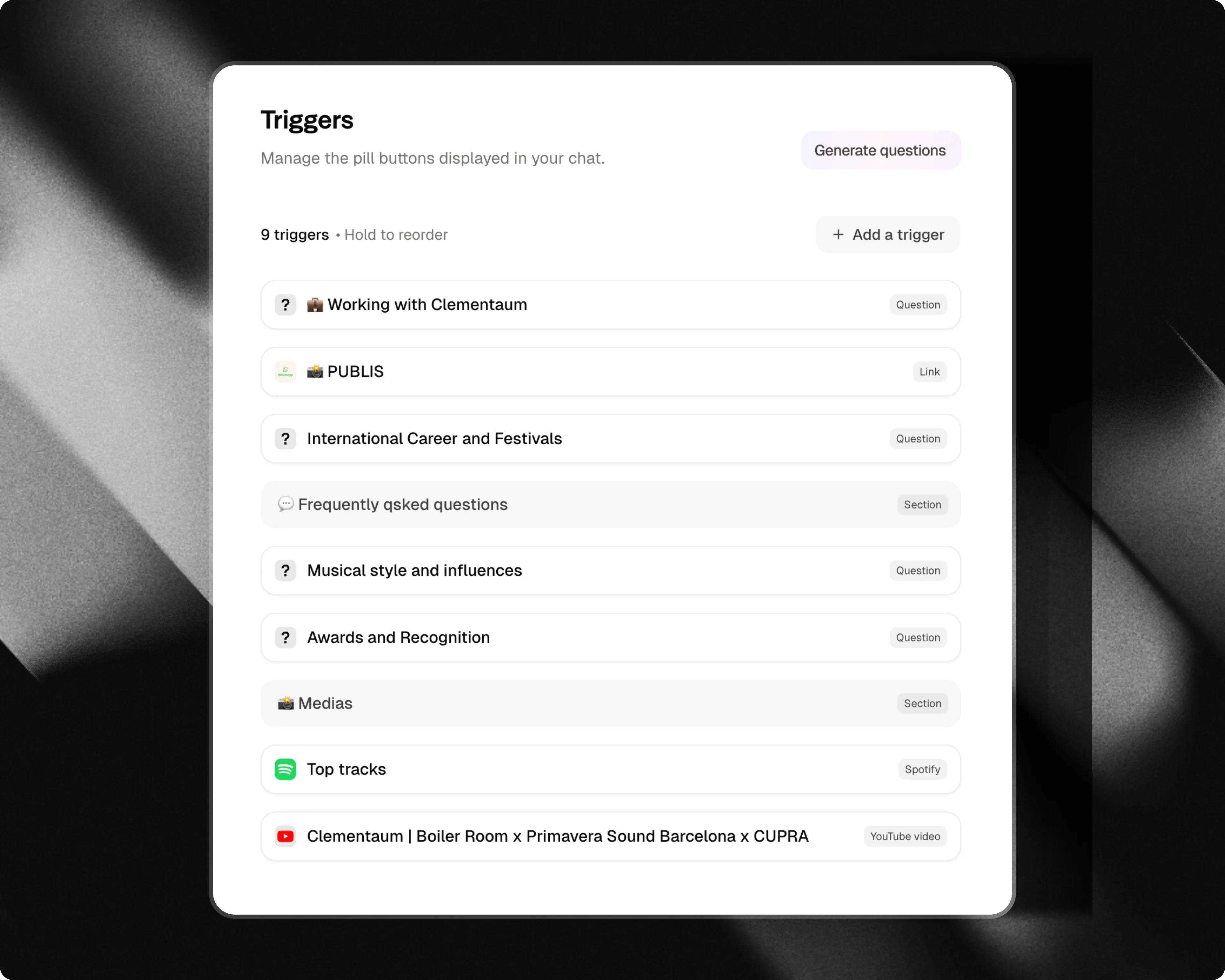
The **Triggers** tab is where you add the questions and actions that will appear in the center of your chat.
Triggers act as conversation starters. They spark visitors curiosity and encourage them to interact with your chat within the first few seconds.
To add triggers, simply click on the **"Triggers"** tab in the left-side menu.
 ## Triggers types
You can create custom triggers using different types of content:
### Questions
Add questions that encourage interaction and help users discover more about you, your organization, or your content.
**Examples:**
* Who are we?
* What products do we offer?
* How does this service work?
* Where can I find specific information?
Questions are one of the most effective ways to start conversations and guide users toward the topics that matter most.
## Triggers types
You can create custom triggers using different types of content:
### Questions
Add questions that encourage interaction and help users discover more about you, your organization, or your content.
**Examples:**
* Who are we?
* What products do we offer?
* How does this service work?
* Where can I find specific information?
Questions are one of the most effective ways to start conversations and guide users toward the topics that matter most.
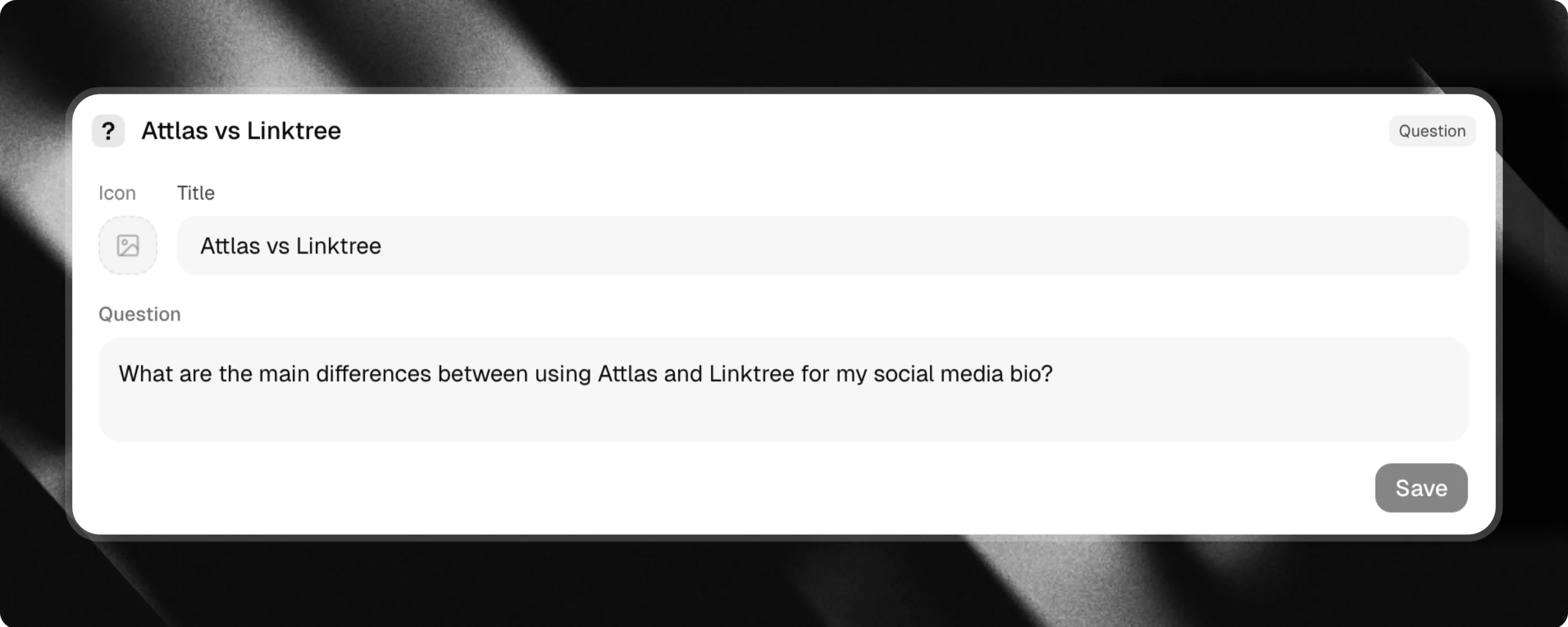 **Title** is what users see before clicking. Make it short, clear and engaging. The **Question** remains hidden and will only be sent to the chat after the trigger is clicked.
#### Generate questions
This action allows you to generate questions from a document that has already been added to the chat's knowledge.
**Title** is what users see before clicking. Make it short, clear and engaging. The **Question** remains hidden and will only be sent to the chat after the trigger is clicked.
#### Generate questions
This action allows you to generate questions from a document that has already been added to the chat's knowledge.
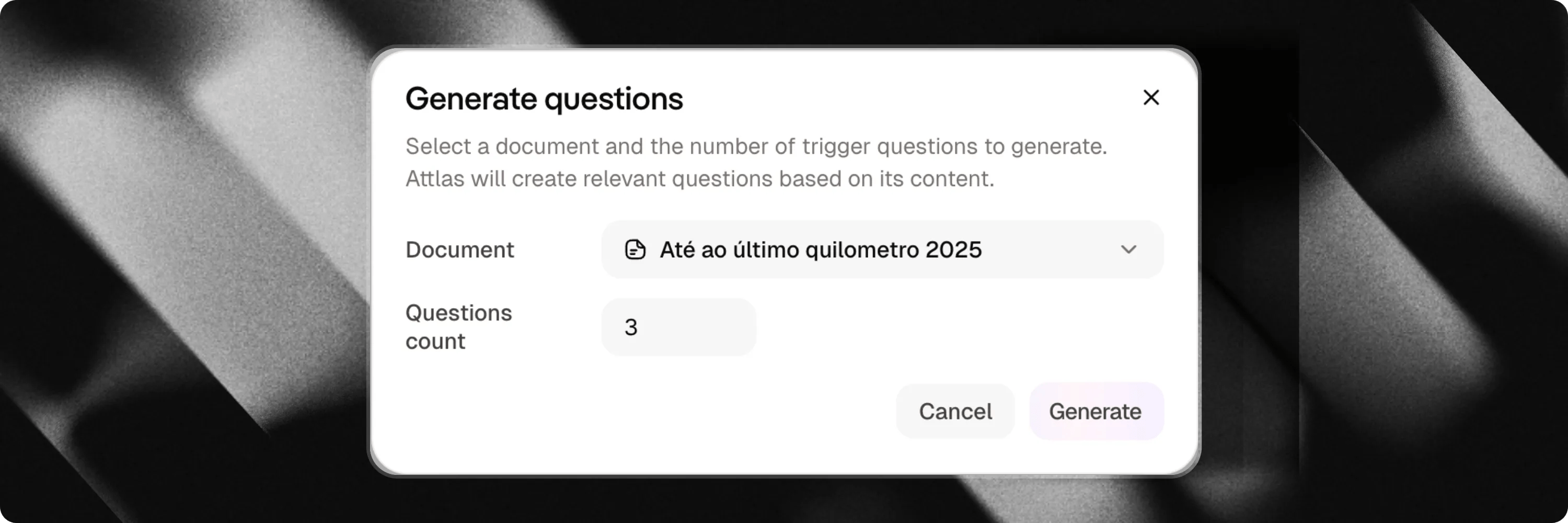 Simply click the **AI Action** Generate Questions\*\* button and Attlas will open a window where you can choose:
1. Select the document you want to generate questions from
2. Set the number of questions you want to generate
Within a few seconds, Attlas will automatically generate suggestions based on the content of the document.
Simply click the **AI Action** Generate Questions\*\* button and Attlas will open a window where you can choose:
1. Select the document you want to generate questions from
2. Set the number of questions you want to generate
Within a few seconds, Attlas will automatically generate suggestions based on the content of the document.
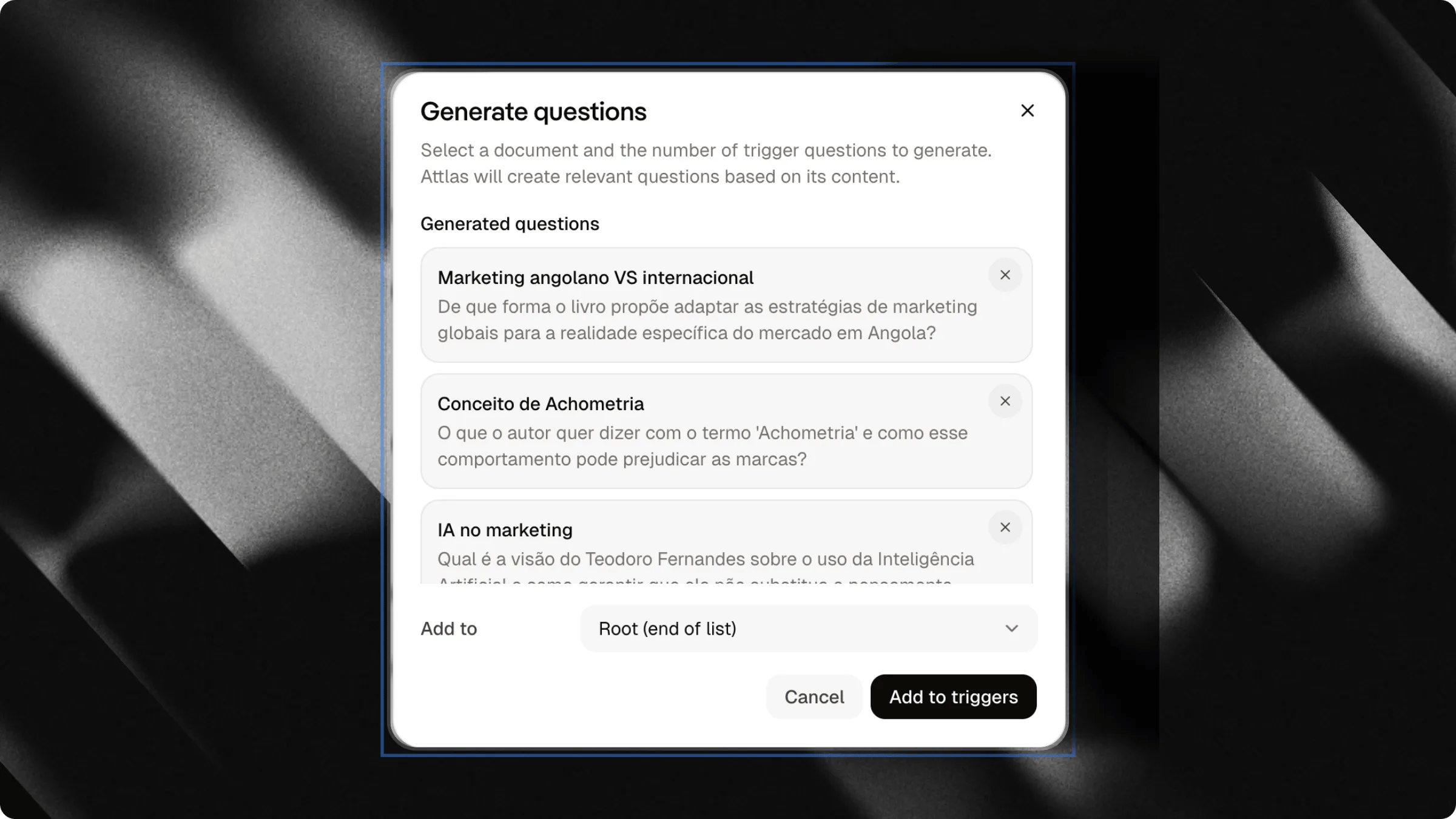 You can then:
* Select the questions that make the most sense
* Remove the ones you don't want to use
* Choose a parent trigger from the **Target Parent** selector to group them under an existing foldable trigger or section (or leave it as **Root** to keep them top-level)
* Generate new suggestions if the initial results do not meet your expectations
When you're finished, click `Add` and you're done. The questions will be added immediately and can be tested in the **Playground**.
***
### External links
Add links to important pages you would like to promote.
You can share:
* Company websites
* Landing pages
* Blogs
* Online stores
* Registration pages
* Portfolios
This is a great way to direct users to valuable content and important actions outside the chat.
You can then:
* Select the questions that make the most sense
* Remove the ones you don't want to use
* Choose a parent trigger from the **Target Parent** selector to group them under an existing foldable trigger or section (or leave it as **Root** to keep them top-level)
* Generate new suggestions if the initial results do not meet your expectations
When you're finished, click `Add` and you're done. The questions will be added immediately and can be tested in the **Playground**.
***
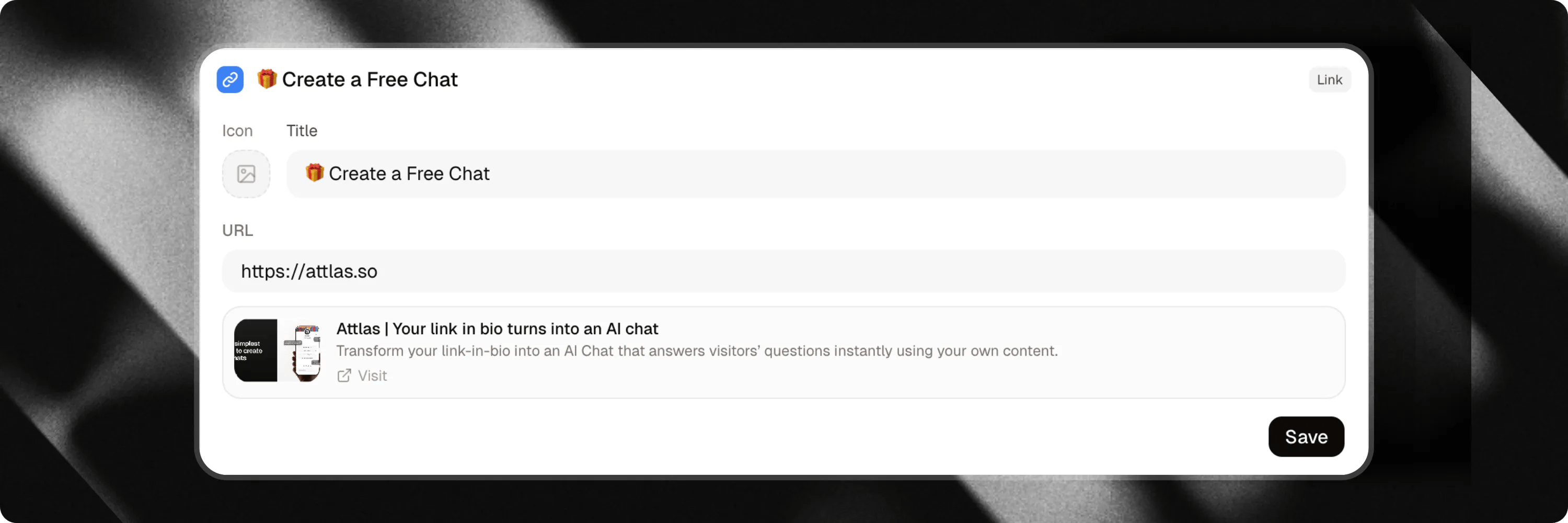
### External links
Add links to important pages you would like to promote.
You can share:
* Company websites
* Landing pages
* Blogs
* Online stores
* Registration pages
* Portfolios
This is a great way to direct users to valuable content and important actions outside the chat.
 ***
### Cards
Create visual link cards to capture your users' attention with a large cover image.
Cards are perfect for highlighting:
* Blog posts and articles
* Special offers or promotions
* Important news or announcements
* Products or services
The card includes a 16:9 cover image and a title. When you add a URL, the card becomes clickable, redirecting users to your page. Visitors can also easily copy the link directly from the card.
Attlas automatically adds UTM tracking parameters to help you analyze traffic.
***
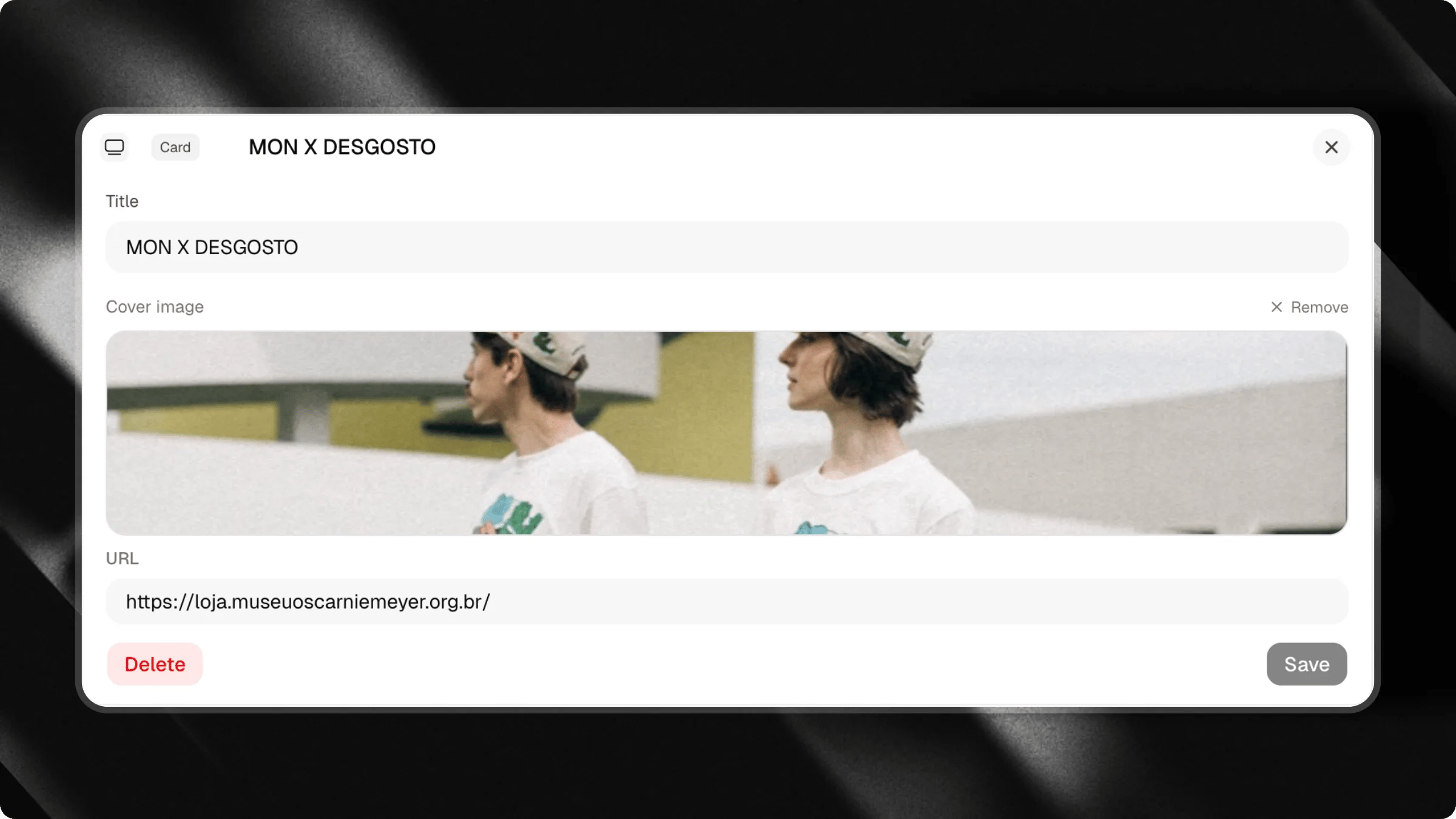
### Cards
Create visual link cards to capture your users' attention with a large cover image.
Cards are perfect for highlighting:
* Blog posts and articles
* Special offers or promotions
* Important news or announcements
* Products or services
The card includes a 16:9 cover image and a title. When you add a URL, the card becomes clickable, redirecting users to your page. Visitors can also easily copy the link directly from the card.
Attlas automatically adds UTM tracking parameters to help you analyze traffic.
 ***
### Spotify embed
Share your favorite songs directly within the chat.
Whether you're an artist, content creator, or simply want to recommend music to your audience, just add a Spotify link.
***
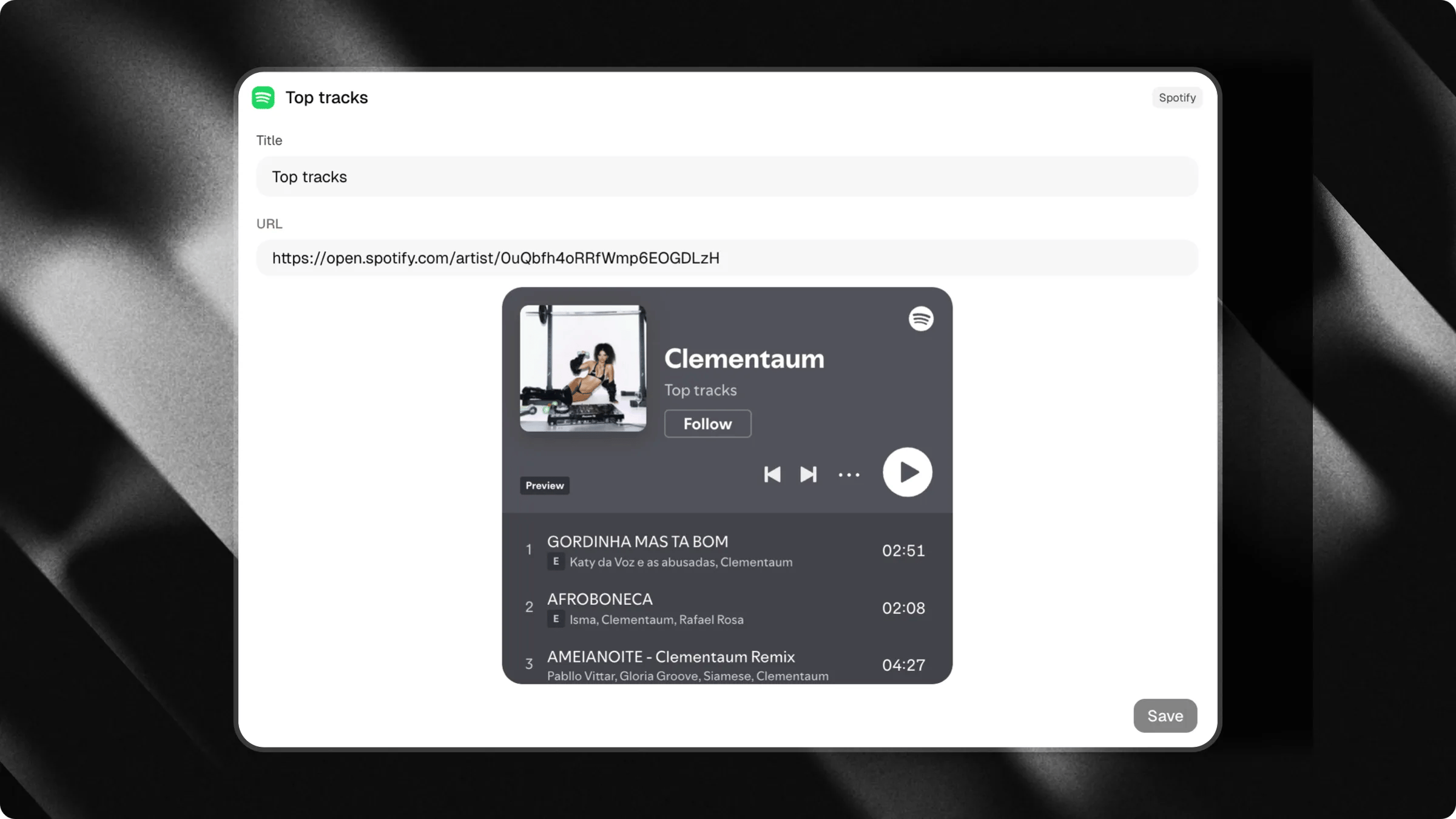
### Spotify embed
Share your favorite songs directly within the chat.
Whether you're an artist, content creator, or simply want to recommend music to your audience, just add a Spotify link.
 ***
### YouTube videos
Promote specific videos from your channel or any content you consider valuable to your users.
Ideal for:
* Tutorials
* Lessons
* Presentations
* Product launches
* Educational content
***
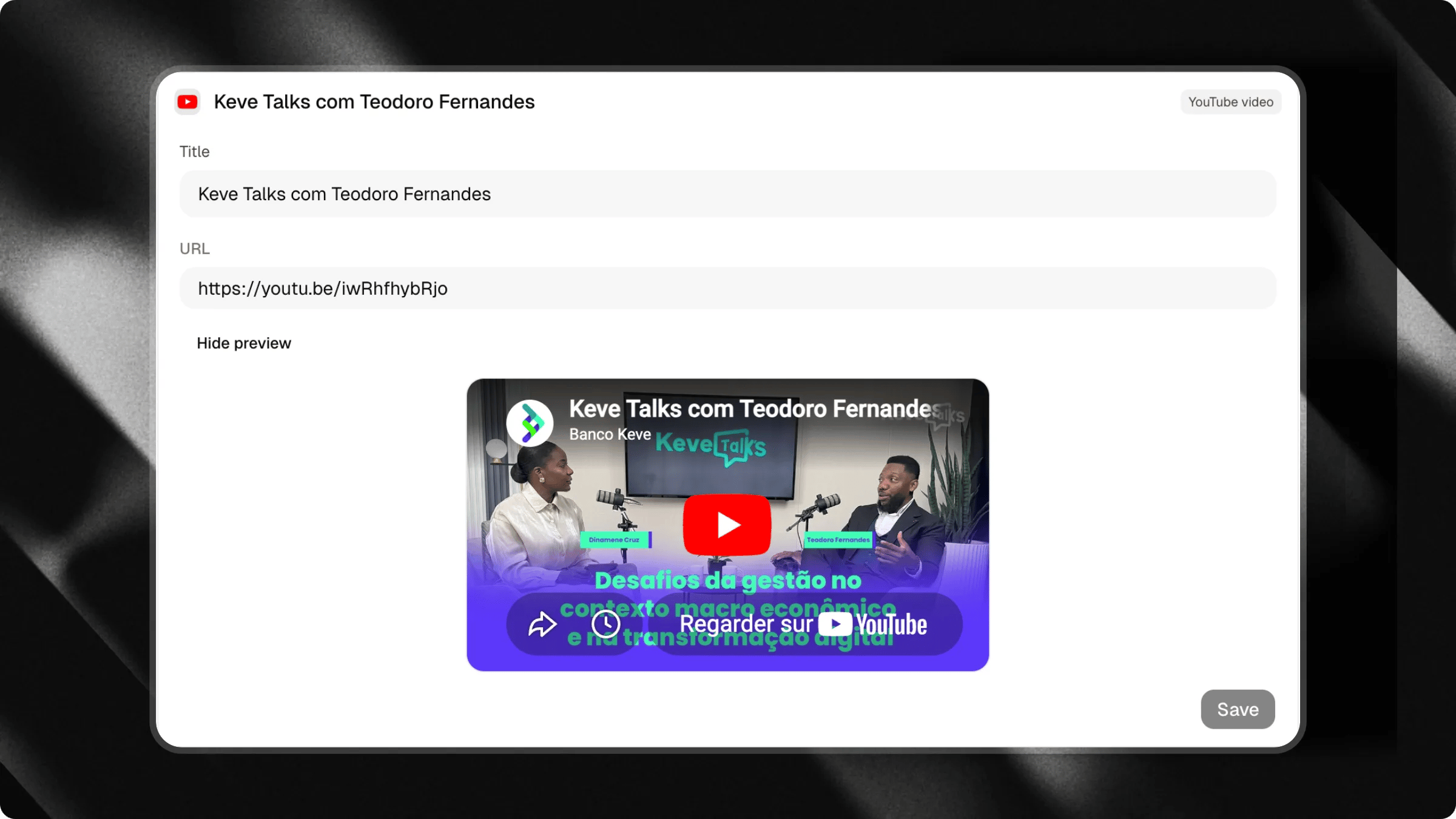
### YouTube videos
Promote specific videos from your channel or any content you consider valuable to your users.
Ideal for:
* Tutorials
* Lessons
* Presentations
* Product launches
* Educational content
 ***
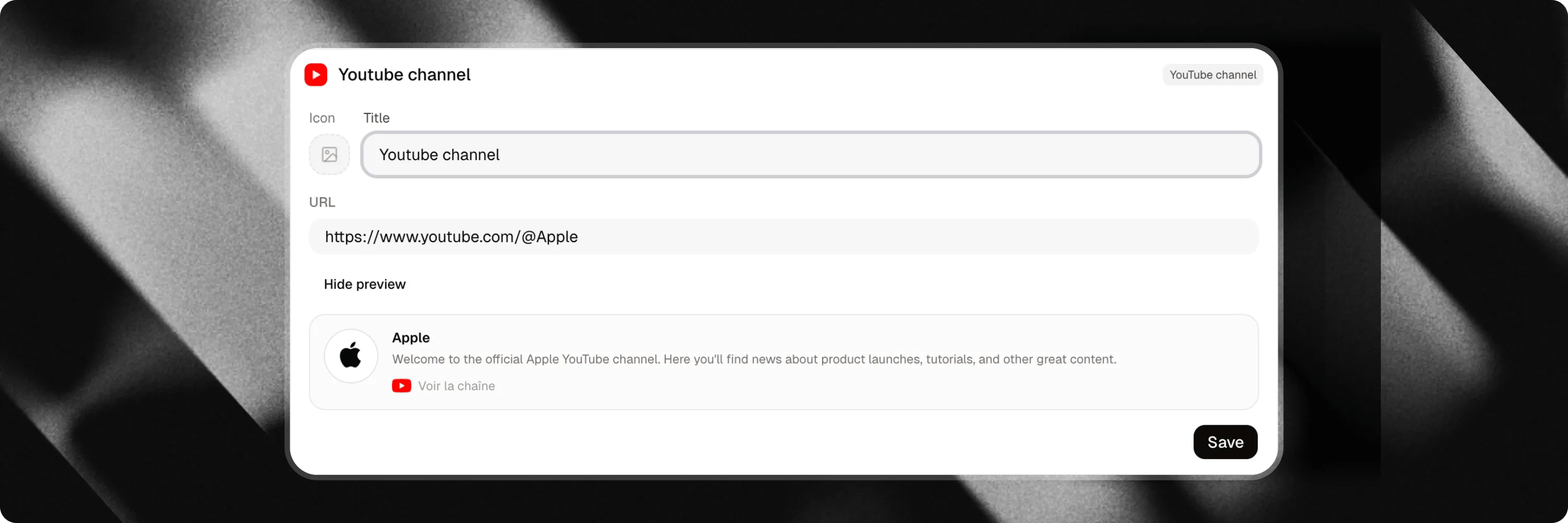
### YouTube channel
Add your channel link so users can easily explore all of your content.
A great option for creators, businesses, educators and brands that regularly publish videos.
***
### YouTube channel
Add your channel link so users can easily explore all of your content.
A great option for creators, businesses, educators and brands that regularly publish videos.
 ***
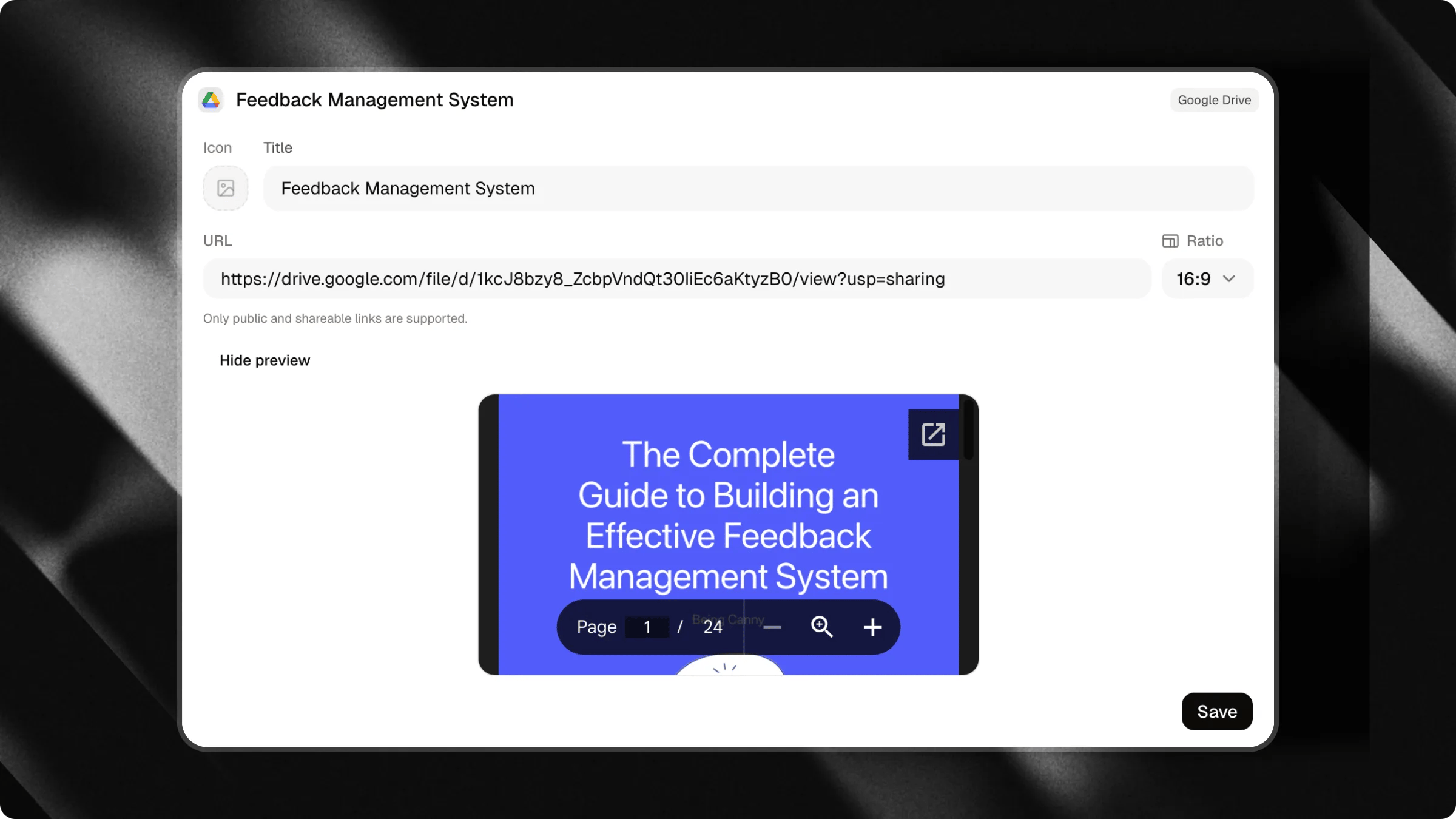
### Google drive files
Share documents, presentations, spreadsheets, or any other files stored in Google Drive.
Simply add the link to give users quick access to your content.
***
### Google drive files
Share documents, presentations, spreadsheets, or any other files stored in Google Drive.
Simply add the link to give users quick access to your content.
 ***
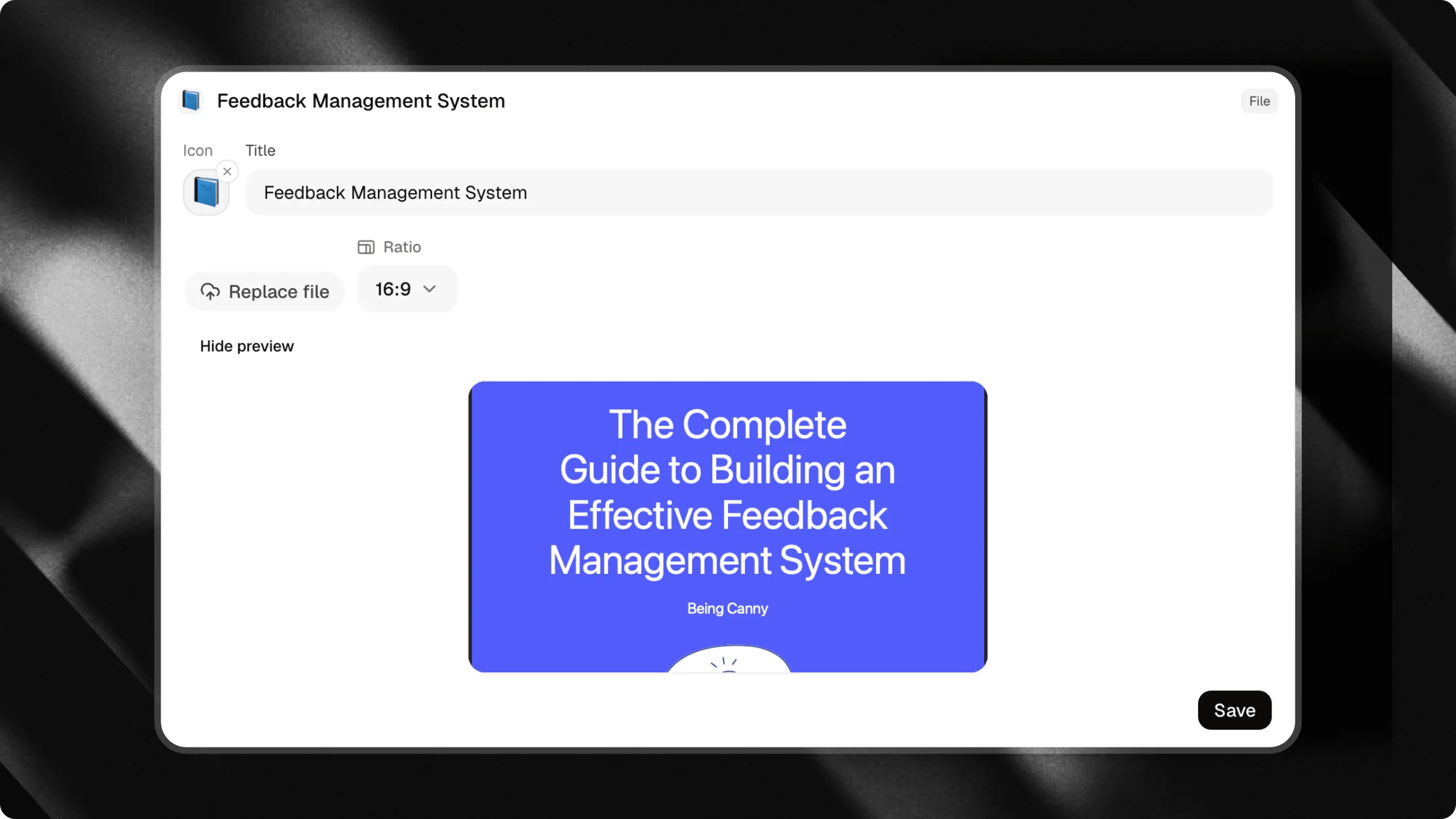
### Files
Make files available for download directly through triggers.
Ideal for sharing:
* PDFs
* E-books
* Catalogs
* Guides
* Presentations
* Supplementary materials
A simple way to deliver important content to your audience without requiring them to leave the chat.
***
### Files
Make files available for download directly through triggers.
Ideal for sharing:
* PDFs
* E-books
* Catalogs
* Guides
* Presentations
* Supplementary materials
A simple way to deliver important content to your audience without requiring them to leave the chat.
 ***
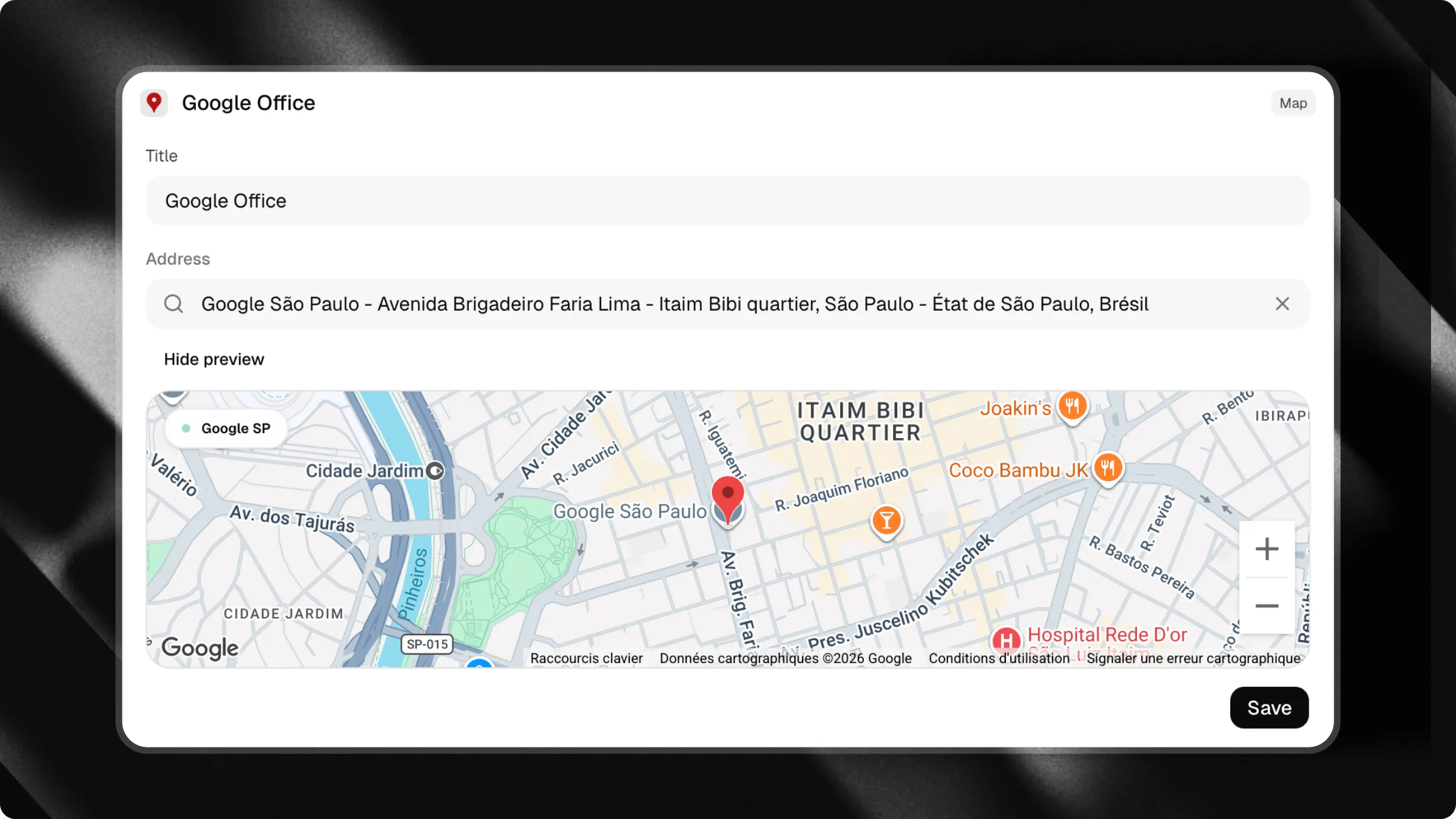
### Location maps
Share a location directly within your chat to help users find you more easily.
Perfect for businesses, offices, stores, event venues, restaurants, or any place that users may want to visit.
Simply add a map link and users will be able to view the location and get directions with a single click.
***
### Location maps
Share a location directly within your chat to help users find you more easily.
Perfect for businesses, offices, stores, event venues, restaurants, or any place that users may want to visit.
Simply add a map link and users will be able to view the location and get directions with a single click.
 ***
Triggers are essential to your chat's success because they help break the ice and make it easier for visitors to start a conversation. Think of them as the first "hello" your chat gives to new users.
And if a user doesn't want to click on any trigger, that's perfectly fine. They can simply type their own question or message directly into the chat.
Use the **Section** button to create sections and organize your triggers, questions and links into categories
***
## Customizing Icons
By default, each trigger type comes with a preconfigured icon designed to represent its content (for example, a question mark for questions, a Spotify logo for Spotify music, or a paperclip for files).
For most trigger types, you can customize this icon to match your brand or preference.
### Available Customization Options
When editing an eligible trigger, click on the icon preview in the edit drawer to open the media picker. You can choose from:
* **Upload**: Upload a custom image file (PNG, JPG, SVG, etc.) from your device.
* **Link**: Provide a direct URL to an image hosted online.
* **Emoji**: Pick a standard emoji to display as the icon.
* **Icon**: Choose from a library of pre-selected system icons.
* **Unsplash**: Search and select high-quality free stock photos.
### Icon Support by Trigger Type
Not all trigger types support icon customization. Some have fixed layouts or default icons:
| Trigger Type | Customizable Icon | Default Icon |
| :------------------ | :-------------------------------- | :---------------- |
| **Question** | Yes | Question Mark |
| **External link** | Yes | Link / Chain |
| **Card** | No (displays its own cover image) | None |
| **Spotify** | No | Spotify Logo |
| **YouTube video** | No | YouTube Logo |
| **YouTube channel** | Yes | YouTube Logo |
| **Google Drive** | Yes | Google Drive Logo |
| **File** | Yes | File / Paperclip |
| **Location maps** | No | Map Pin |
| **Email** | Yes | Mail Envelope |
| **Phone** | Yes | Phone Receiver |
| **Section** | No (styled as a header separator) | None |
***
## Nested Triggers (Parent-Child)
To keep your chat interface clean and organized, you can nest triggers under other triggers to create a parent-child relationship.
### Foldable triggers
Only certain trigger types can act as a parent (foldable) and contain child triggers:
| Trigger Type | Foldable |
| --------------- | -------- |
| Question | No |
| Link | Yes |
| Card | Yes |
| File | Yes |
| Google Drive | Yes |
| YouTube video | No |
| YouTube channel | No |
| Spotify | No |
| Map | No |
| Email | No |
| Phone | No |
| Section | Yes |
### How it works
When a trigger contains child triggers:
* **In the Chat:** Clicking the parent trigger expands it inline to reveal its children.
* If the parent is a content trigger (such as a Link, File, or Card), the expansion displays a primary action row at the top (to visit the link or download the file), followed by the child questions.
* If the parent is a **Section**, it expands to display the child items.
### How to set up nested triggers
***
Triggers are essential to your chat's success because they help break the ice and make it easier for visitors to start a conversation. Think of them as the first "hello" your chat gives to new users.
And if a user doesn't want to click on any trigger, that's perfectly fine. They can simply type their own question or message directly into the chat.
Use the **Section** button to create sections and organize your triggers, questions and links into categories
***
## Customizing Icons
By default, each trigger type comes with a preconfigured icon designed to represent its content (for example, a question mark for questions, a Spotify logo for Spotify music, or a paperclip for files).
For most trigger types, you can customize this icon to match your brand or preference.
### Available Customization Options
When editing an eligible trigger, click on the icon preview in the edit drawer to open the media picker. You can choose from:
* **Upload**: Upload a custom image file (PNG, JPG, SVG, etc.) from your device.
* **Link**: Provide a direct URL to an image hosted online.
* **Emoji**: Pick a standard emoji to display as the icon.
* **Icon**: Choose from a library of pre-selected system icons.
* **Unsplash**: Search and select high-quality free stock photos.
### Icon Support by Trigger Type
Not all trigger types support icon customization. Some have fixed layouts or default icons:
| Trigger Type | Customizable Icon | Default Icon |
| :------------------ | :-------------------------------- | :---------------- |
| **Question** | Yes | Question Mark |
| **External link** | Yes | Link / Chain |
| **Card** | No (displays its own cover image) | None |
| **Spotify** | No | Spotify Logo |
| **YouTube video** | No | YouTube Logo |
| **YouTube channel** | Yes | YouTube Logo |
| **Google Drive** | Yes | Google Drive Logo |
| **File** | Yes | File / Paperclip |
| **Location maps** | No | Map Pin |
| **Email** | Yes | Mail Envelope |
| **Phone** | Yes | Phone Receiver |
| **Section** | No (styled as a header separator) | None |
***
## Nested Triggers (Parent-Child)
To keep your chat interface clean and organized, you can nest triggers under other triggers to create a parent-child relationship.
### Foldable triggers
Only certain trigger types can act as a parent (foldable) and contain child triggers:
| Trigger Type | Foldable |
| --------------- | -------- |
| Question | No |
| Link | Yes |
| Card | Yes |
| File | Yes |
| Google Drive | Yes |
| YouTube video | No |
| YouTube channel | No |
| Spotify | No |
| Map | No |
| Email | No |
| Phone | No |
| Section | Yes |
### How it works
When a trigger contains child triggers:
* **In the Chat:** Clicking the parent trigger expands it inline to reveal its children.
* If the parent is a content trigger (such as a Link, File, or Card), the expansion displays a primary action row at the top (to visit the link or download the file), followed by the child questions.
* If the parent is a **Section**, it expands to display the child items.
### How to set up nested triggers
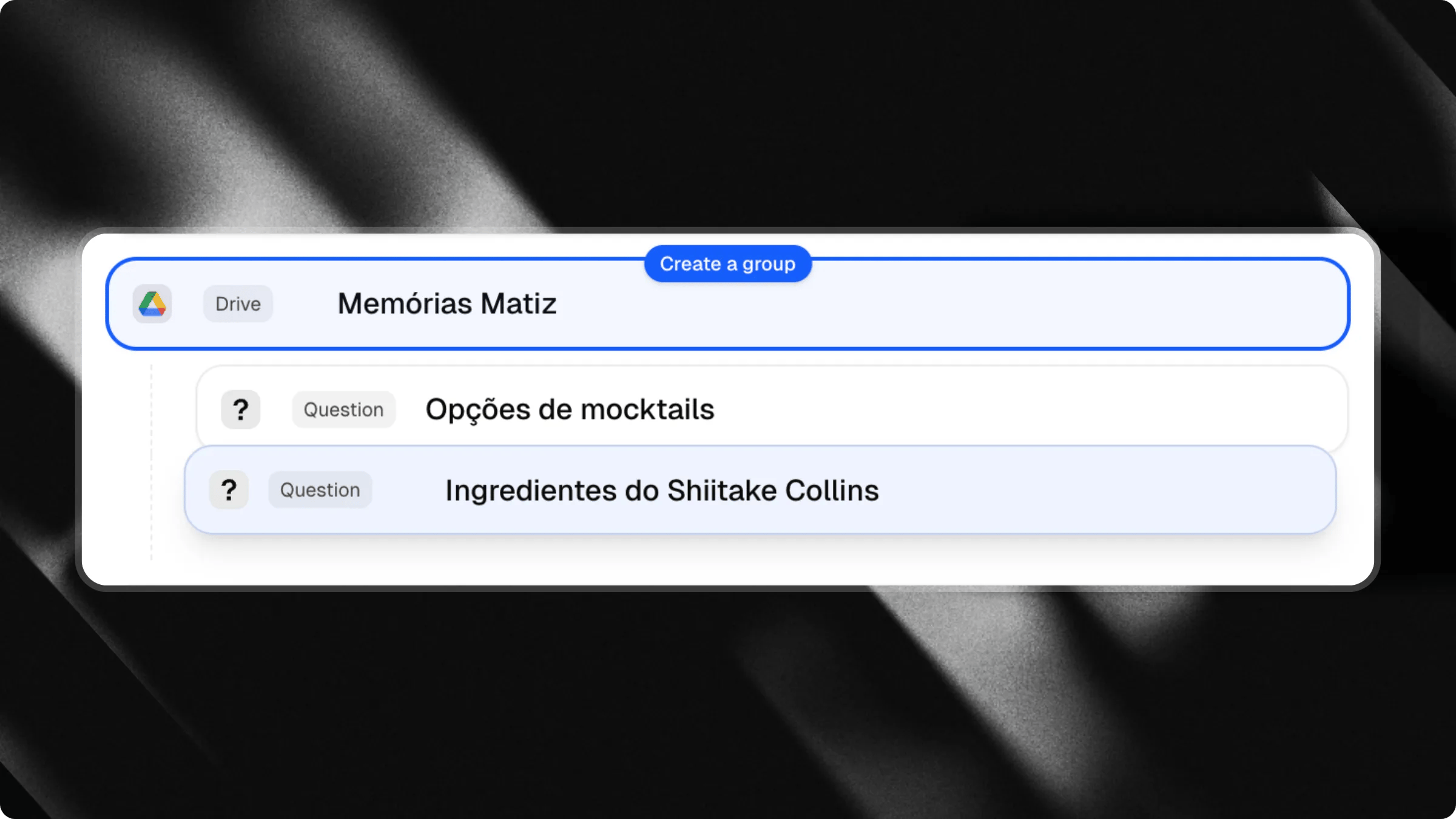
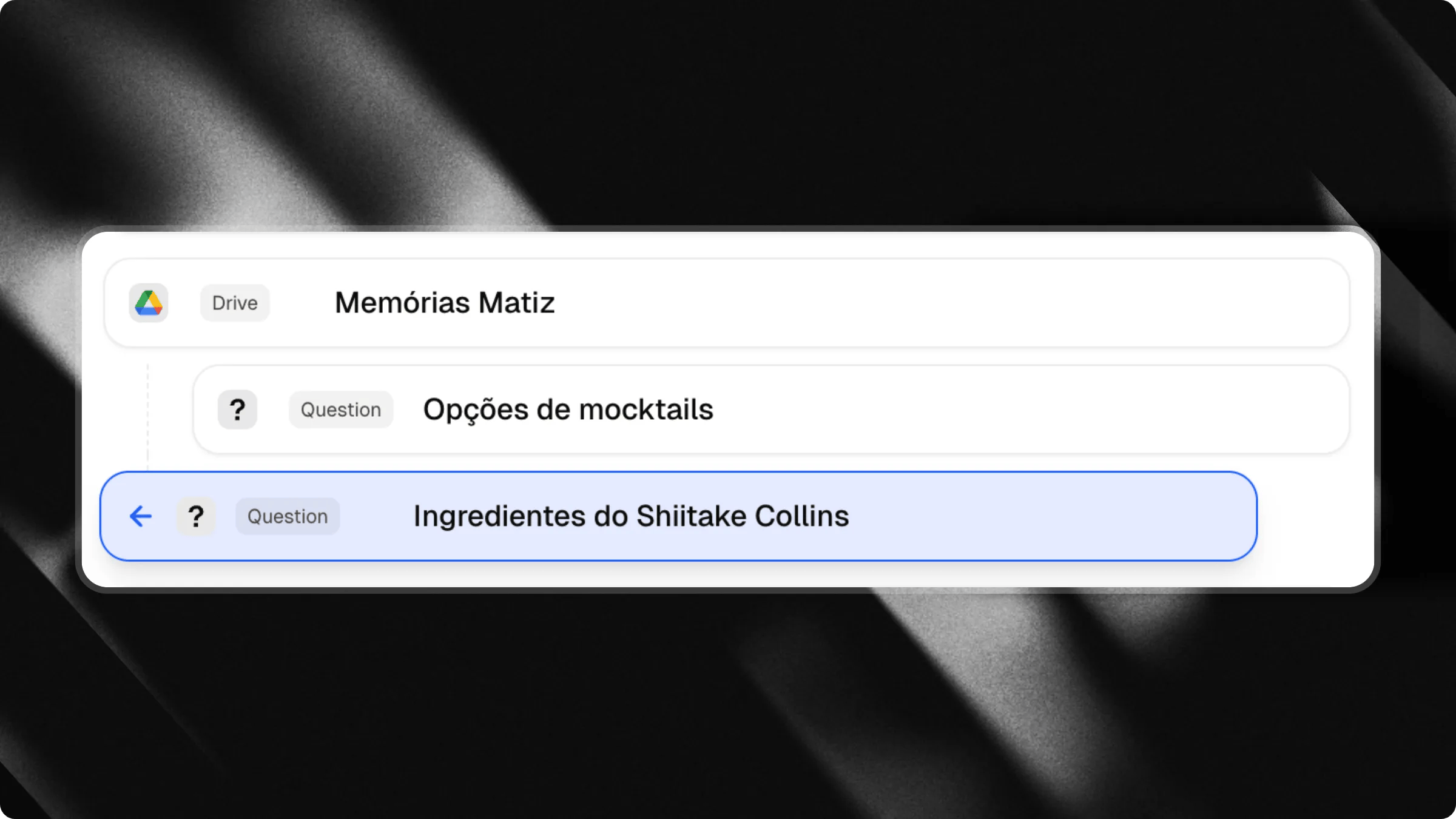 You can create parent-child relationships in two ways:
1. **Drag and Drop:** In the trigger list, drag a trigger to the right (indenting it) to nest it under the trigger above it. Drag it back to the left (outdenting) to restore it as a top-level trigger.
2. **From the Editor:** Open the edit drawer of any parent-eligible trigger, scroll down to the **Suggested Questions** section and click Add Question to add questions directly as children.
***
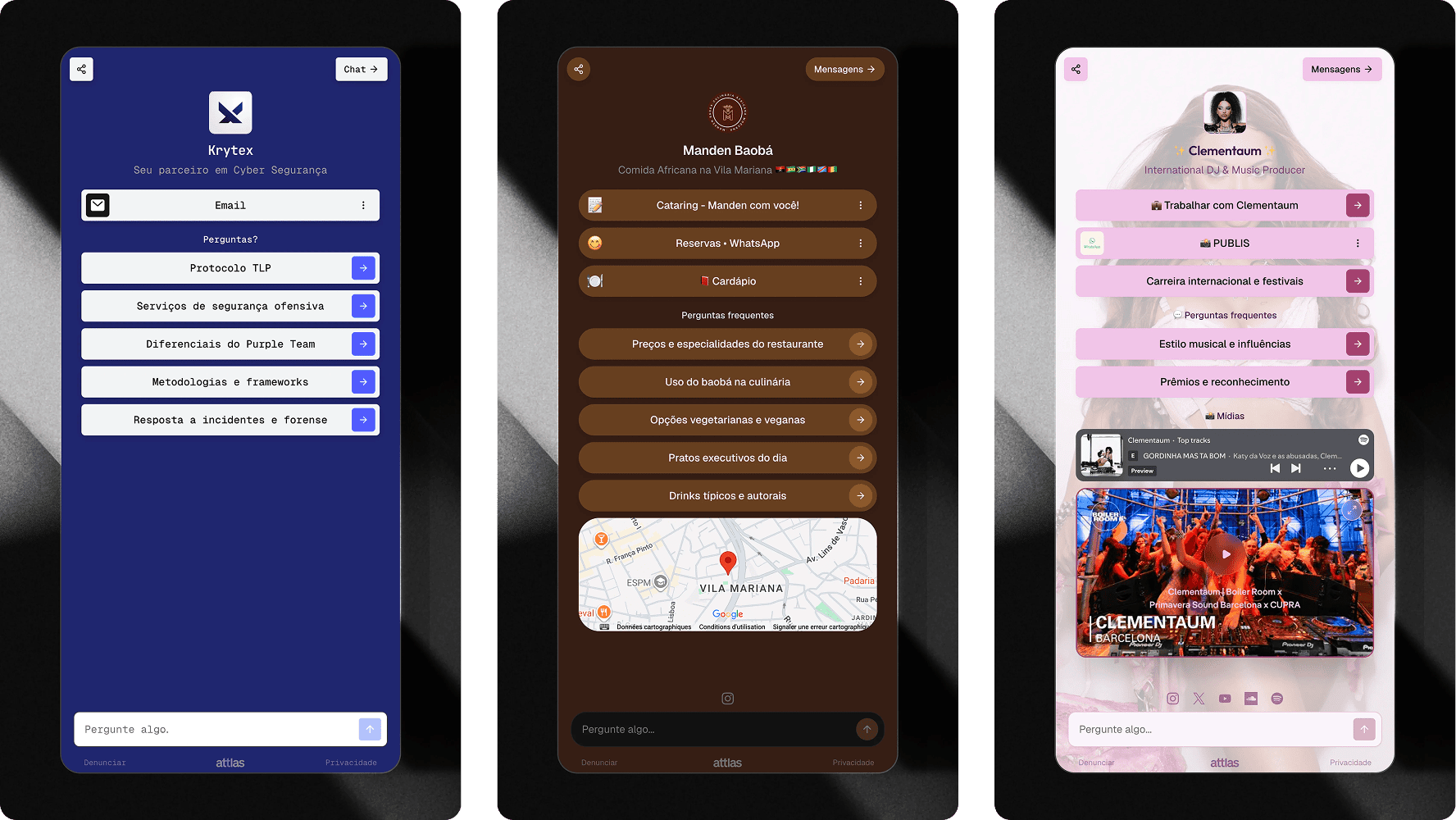
## And the result?
It's incredible!
You can create parent-child relationships in two ways:
1. **Drag and Drop:** In the trigger list, drag a trigger to the right (indenting it) to nest it under the trigger above it. Drag it back to the left (outdenting) to restore it as a top-level trigger.
2. **From the Editor:** Open the edit drawer of any parent-eligible trigger, scroll down to the **Suggested Questions** section and click Add Question to add questions directly as children.
***
## And the result?
It's incredible!
 **Triggers are just one of the interaction methods available in Attlas.** In addition to triggers, users can freely chat with the AI Chat directly on the page, ask questions, explore content and receive personalized responses.
Transform your content into intelligent conversations powered by your knowledge
**Triggers are just one of the interaction methods available in Attlas.** In addition to triggers, users can freely chat with the AI Chat directly on the page, ask questions, explore content and receive personalized responses.
Transform your content into intelligent conversations powered by your knowledge