> ## Documentation Index
> Fetch the complete documentation index at: https://attlas.so/docs/llms.txt
> Use this file to discover all available pages before exploring further.
# Coverage rate
> Understand how well your chat answers user questions and identify opportunities for improvement.
The **coverage rate** is a metric available in the Attlas **overview** dashboard that measures the quality of the responses your chat provides to users.
It acts as a health indicator, helping you understand whether your chat is successfully answering the most common questions asked by your audience.
***
## Automatic evaluation of responses
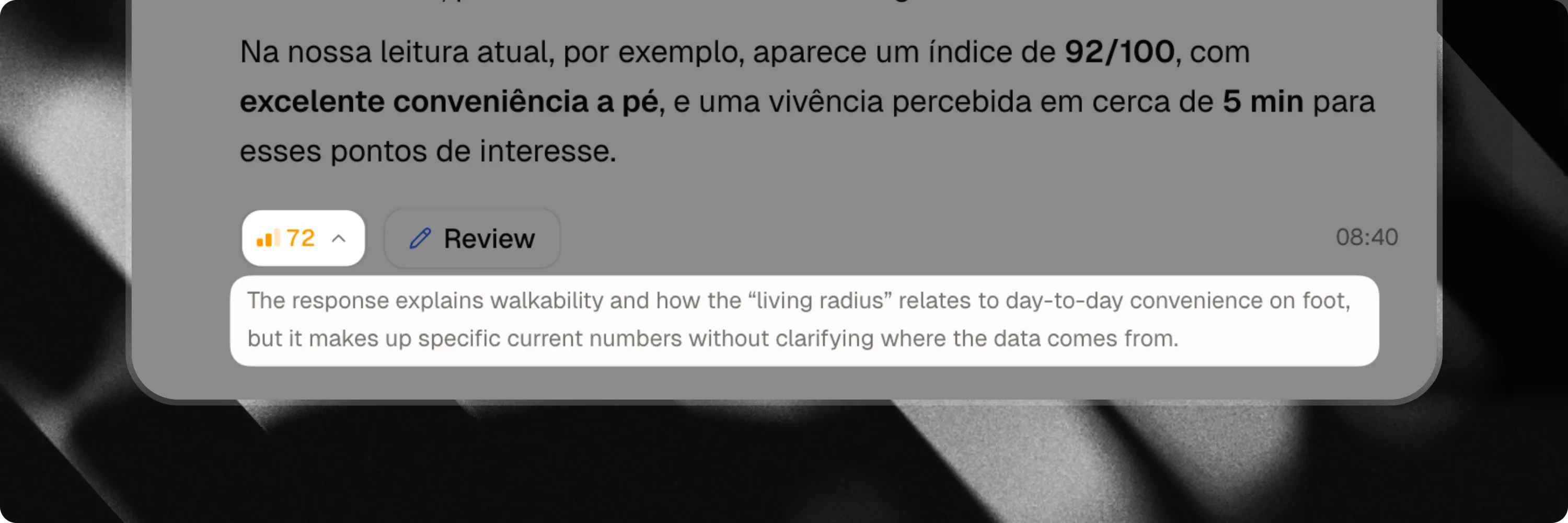
Every message sent by your chatbot automatically receives a score from 0 to 100, visible in the **Conversations** view. This score measures the quality of the response from the user's perspective: did they get what they were looking for?
The overall **coverage rate** shown in your dashboard is the average of these individual evaluations.
### How to read the scores
* 🟢 **Green (85 to 100)**, The response is direct, accurate and helpful. The user obtained the information they were looking for.
* 🟠 **Orange (50 to 84)**, The response is partially helpful. This may indicate that an off-topic question was correctly declined, or that a relevant response lacked precision on an important aspect.
* 🔴 **Red (0 to 49)**, The user left without a satisfying answer. Either the chatbot did not have the necessary information, or the response did not match the question asked.
### Understanding the reasoning
Click on any score to display a short explanation detailing why that grade was assigned and which aspect of the response influenced the decision. This is your starting point for identifying exactly what needs to be improved.
***
## Improving your chatbot using scores
Red scores are the most valuable to review. When analyzing them, there are two main scenarios to consider:
1. **The question was within scope, but the information was missing** → This is content you need to add to your knowledge base. The more you enrich the knowledge base, the more your overall coverage rate will increase.
2. **The question was off-topic** → The chatbot behaved correctly. No action is required.
**Focus on satisfaction, not politeness:** The score evaluates user satisfaction, not the politeness of the bot. A response like *"I don't have this information"*, even if politely and perfectly formulated, is never considered a good response if the question was legitimate.
***
## How to use this metric to your advantage
The coverage rate is more than just a number, it is a practical tool for continuously improving your assistant.
### 1. Monitor the rate in analytics
Track your overall coverage rate regularly in the overview dashboard to identify trends.
### 2. Review evaluator feedback
Check the explanations and comments provided by the evaluator alongside each score.
 ### 3. Add or improve content
Update your knowledge base so your chat can respond more clearly, accurately and contextually to previously failed questions.
### 4. Correct low-rated responses
Visit the **Corrections** section and review the questions and answers that received low coverage scores. Provide improved responses and additional context so future answers become more accurate.
Corrections is available exclusively on the **Attlas PRO** plan.
### 3. Add or improve content
Update your knowledge base so your chat can respond more clearly, accurately and contextually to previously failed questions.
### 4. Correct low-rated responses
Visit the **Corrections** section and review the questions and answers that received low coverage scores. Provide improved responses and additional context so future answers become more accurate.
Corrections is available exclusively on the **Attlas PRO** plan.