> ## Documentation Index
> Fetch the complete documentation index at: https://attlas.so/docs/llms.txt
> Use this file to discover all available pages before exploring further.
# Notion integration
> Connect your Notion workspace to your Attlas Chat to import pages and keep your assistant's knowledge base automatically in sync.
The Notion integration allows you to sync your workspace pages directly with your Attlas Chat. Instead of manually exporting and uploading files, you can connect your Notion account and select the pages you want your assistant to learn.
Once imported, Attlas keeps your knowledge base updated by listening to page modifications and deletions.
***
## Key benefits
* **Direct page picking**: Select exactly which pages and subpages to share with your chat using the official Notion picker.
* **Real-time synchronization**: Any updates or edits you make inside Notion are automatically synced to your chatbot's knowledge base.
* **Automatic cleanup**: If you delete or archive a page in Notion, Attlas automatically removes it from your sources.
* **Centralized knowledge**: Keep your team documentation in Notion while your assistant serves up-to-date answers to your users.
The Notion integration is available on paid plans. Make sure your subscription includes Integrations before getting started.
***
## How to connect
Connections are established **per chat**, meaning you can connect different Notion workspaces or pages to different chats.
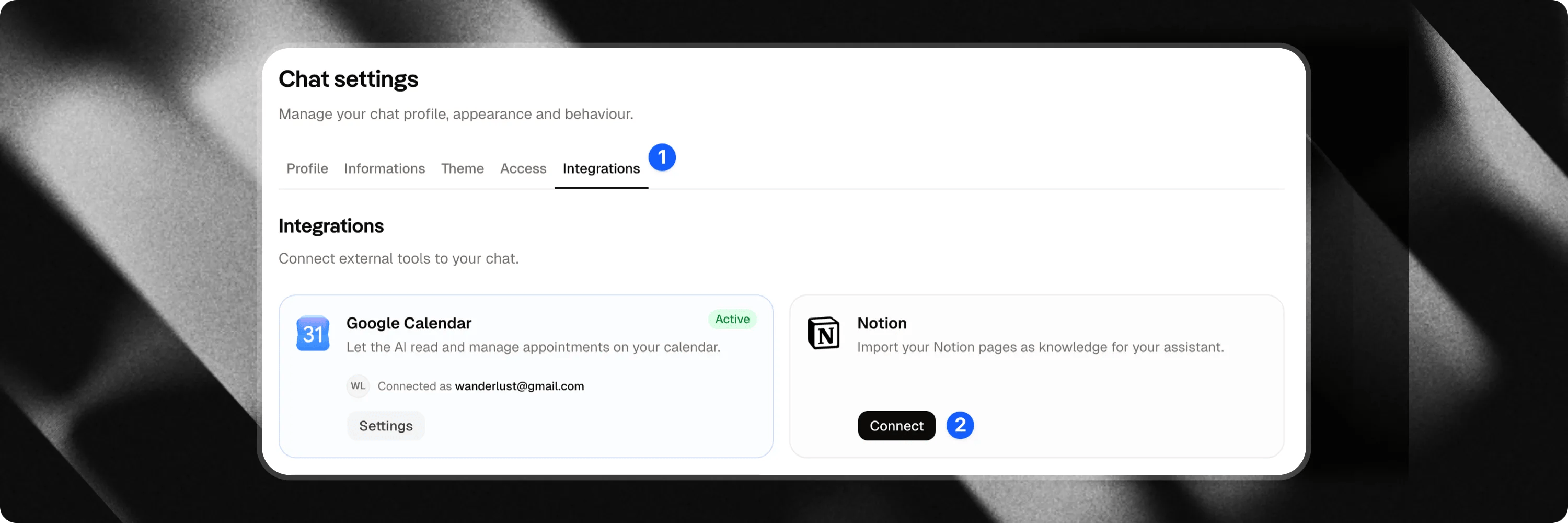 To connect Notion:
1. From the **Ttb**, select the chat you want to configure.
2. Go to the chat's **Settings** (using the settings button in the navigation).
3. Click on the **Integrations** tab.
4. Locate the **Notion** card and click **Connect**.
5. Log in to your Notion account and authorize access. You can select specific pages or grant access to your entire workspace.
Once connected, the card will display your connected Notion workspace name.
***
## Importing pages
To connect Notion:
1. From the **Ttb**, select the chat you want to configure.
2. Go to the chat's **Settings** (using the settings button in the navigation).
3. Click on the **Integrations** tab.
4. Locate the **Notion** card and click **Connect**.
5. Log in to your Notion account and authorize access. You can select specific pages or grant access to your entire workspace.
Once connected, the card will display your connected Notion workspace name.
***
## Importing pages
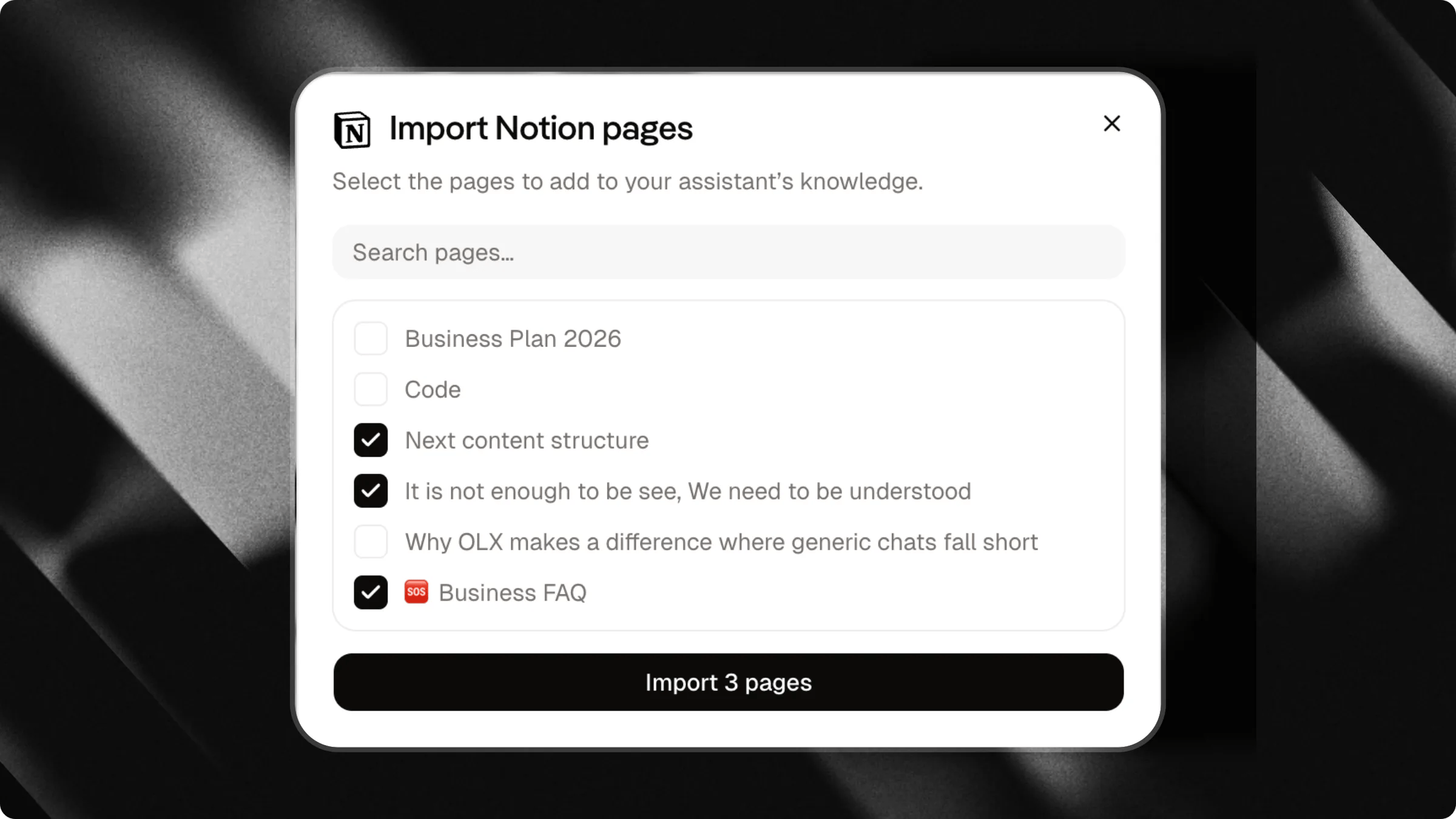 You can import pages into your chatbot's knowledge base from two places in Attlas:
### From settings
1. In the **Integrations** tab under Settings, click **Import Pages** on the Notion card.
2. Select the pages you want to import from your connected workspace.
3. Click **Import** to start the ingestion.
You can import pages into your chatbot's knowledge base from two places in Attlas:
### From settings
1. In the **Integrations** tab under Settings, click **Import Pages** on the Notion card.
2. Select the pages you want to import from your connected workspace.
3. Click **Import** to start the ingestion.
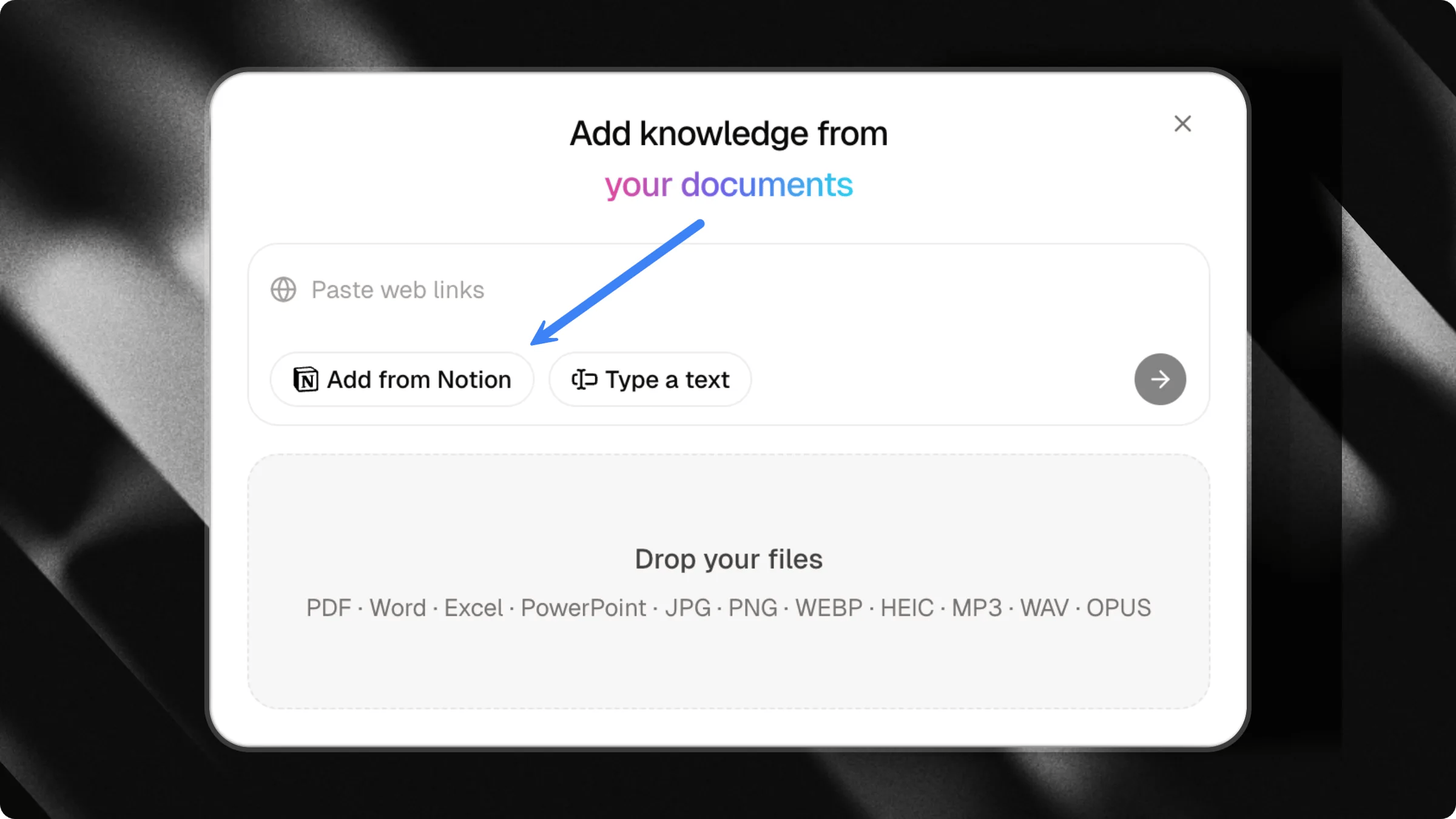 ### From the knowledge base
1. Go to the **Knowledge** section of your chat.
2. Click **Add Source**.
3. Select **Add from Notion**.
4. Choose the pages you want to add and confirm the import.
***
## Synchronization and Editing
To ensure consistency and accuracy, the Notion integration works under the following principles:
### Notion as the single source of truth
The built-in document editor in Attlas is disabled (read-only) for all imported Notion documents. To update the content of these documents, you must edit them directly inside Notion. This prevents conflicts and guarantees a single source of truth.
### Sync timing
Synchronization of edits and deletions is automatic but is **not instantaneous**. Updates or deletions made in Notion can take **up to 5 minutes** to reflect in your Attlas Chat's knowledge base.
### From the knowledge base
1. Go to the **Knowledge** section of your chat.
2. Click **Add Source**.
3. Select **Add from Notion**.
4. Choose the pages you want to add and confirm the import.
***
## Synchronization and Editing
To ensure consistency and accuracy, the Notion integration works under the following principles:
### Notion as the single source of truth
The built-in document editor in Attlas is disabled (read-only) for all imported Notion documents. To update the content of these documents, you must edit them directly inside Notion. This prevents conflicts and guarantees a single source of truth.
### Sync timing
Synchronization of edits and deletions is automatic but is **not instantaneous**. Updates or deletions made in Notion can take **up to 5 minutes** to reflect in your Attlas Chat's knowledge base.