> ## Documentation Index
> Fetch the complete documentation index at: https://attlas.so/docs/llms.txt
> Use this file to discover all available pages before exploring further.
# Multilingual chat
> Your chat speaks your visitors' language, automatically.
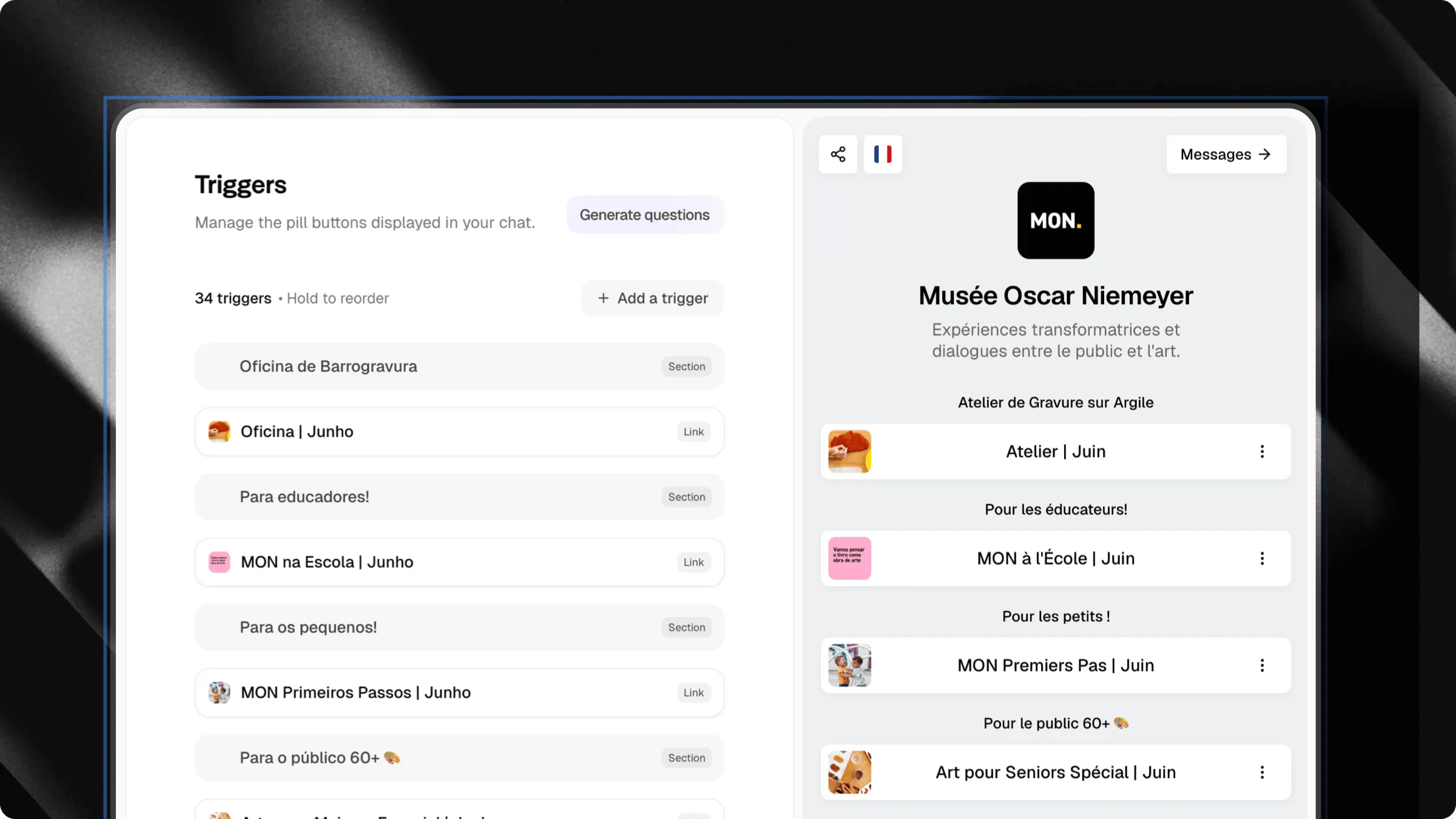
When you create a chat on Attlas, you write your content in your own language: your chat's name, description, welcome message and the labels on your triggers.
Attlas automatically translates all of this content so every visitor sees your chat in their own language, without any extra work on your part.
***
## How it works
When you save a trigger or update your chat profile, Attlas translates your content into 13 languages in the background.
When a visitor opens your chat, they see everything, including trigger labels and your welcome message, in their own language.
If a visitor clicks a question trigger, the question is sent to the AI in their language, so the response comes back in their language too.
***
## Supported languages
| Language | Code |
| ----------------------- | ---- |
| English | en |
| Spanish | es |
| Português (Brasil) | pt |
| French | fr |
| German | de |
| Italian | it |
| 中文 (Chinese Simplified) | zh |
| 日本語 (Japanese) | ja |
| العربية (Arabic) | ar |
| हिन्दी (Hindi) | hi |
| Русский (Russian) | ru |
| Bahasa Indonesia | id |
| Kiswahili (Swahili) | sw |
Arabic is displayed right-to-left automatically.
 ***
## Language detection
Attlas detects the right language for each visitor in this order:
1. **Manual choice** — if the visitor has selected a language using the language switcher, that choice is always respected.
2. **Conversation language** — the language the visitor is actually writing in.
3. **Browser language** — the language configured in their browser.
4. **Location** — if the browser gives no clear signal, Attlas uses the visitor's country as a fallback.
5. **English** — the default if nothing else is detected.
***
## Language switcher
***
## Language detection
Attlas detects the right language for each visitor in this order:
1. **Manual choice** — if the visitor has selected a language using the language switcher, that choice is always respected.
2. **Conversation language** — the language the visitor is actually writing in.
3. **Browser language** — the language configured in their browser.
4. **Location** — if the browser gives no clear signal, Attlas uses the visitor's country as a fallback.
5. **English** — the default if nothing else is detected.
***
## Language switcher
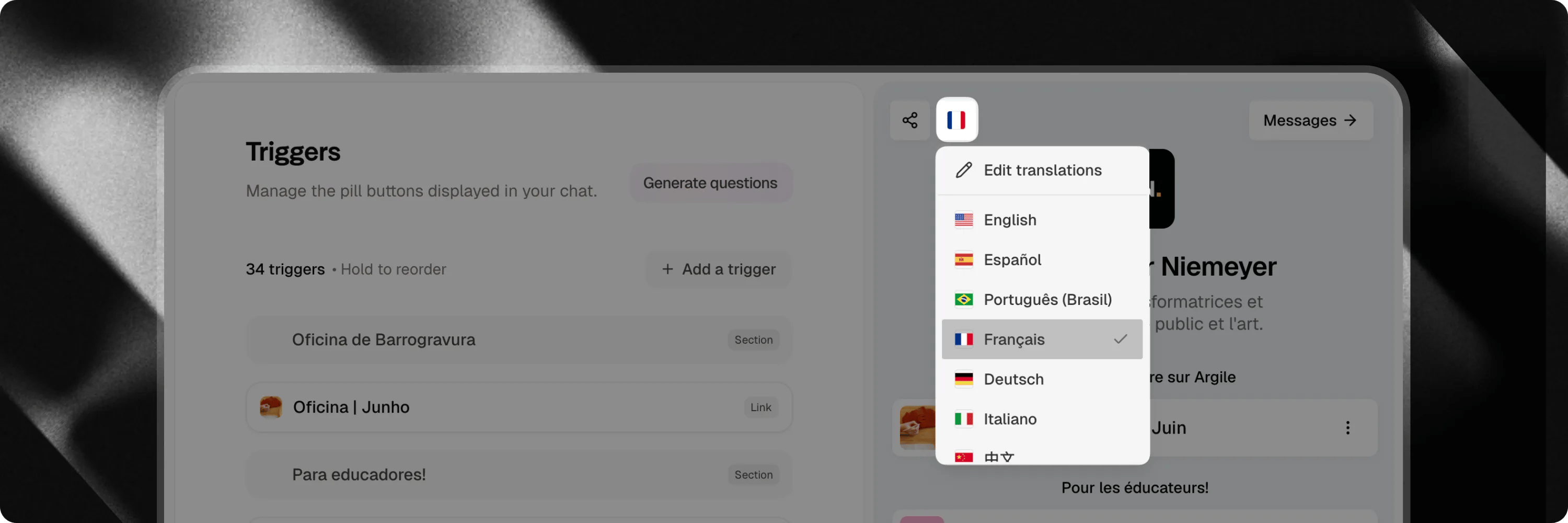 Every chat has a language switcher in the header (globe icon). Visitors can use it to switch to any of the 13 supported languages at any time.
Their choice is saved for future visits.
***
## Fine-tuning translations
If an automatic translation feels off for a specific language, you can edit it directly, without touching your source content.
This option is only visible to you, as the chat owner, in your workspace. Visitors never see the edit button.
**To edit a translation:**
Every chat has a language switcher in the header (globe icon). Visitors can use it to switch to any of the 13 supported languages at any time.
Their choice is saved for future visits.
***
## Fine-tuning translations
If an automatic translation feels off for a specific language, you can edit it directly, without touching your source content.
This option is only visible to you, as the chat owner, in your workspace. Visitors never see the edit button.
**To edit a translation:**
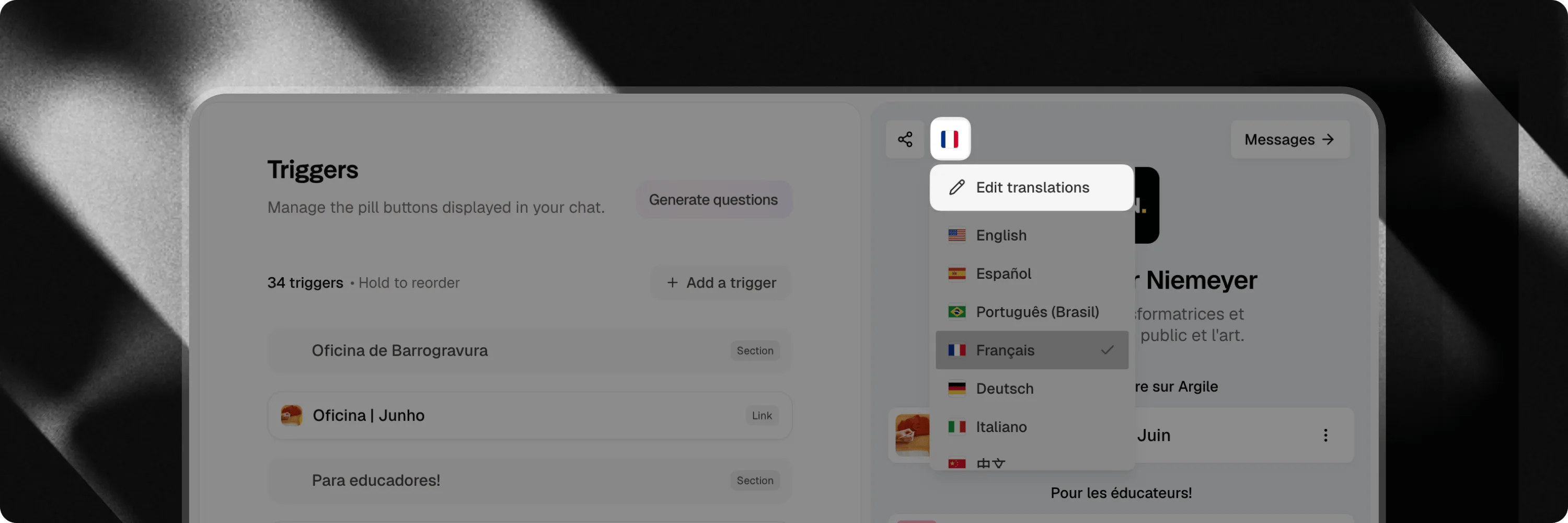 1. Open your chat in the workspace sidebar preview.
2. Click the **flag icon** in the chat header to open the language switcher.
3. Click **Edit translations** (pencil icon) at the top of the dropdown.
1. Open your chat in the workspace sidebar preview.
2. Click the **flag icon** in the chat header to open the language switcher.
3. Click **Edit translations** (pencil icon) at the top of the dropdown.
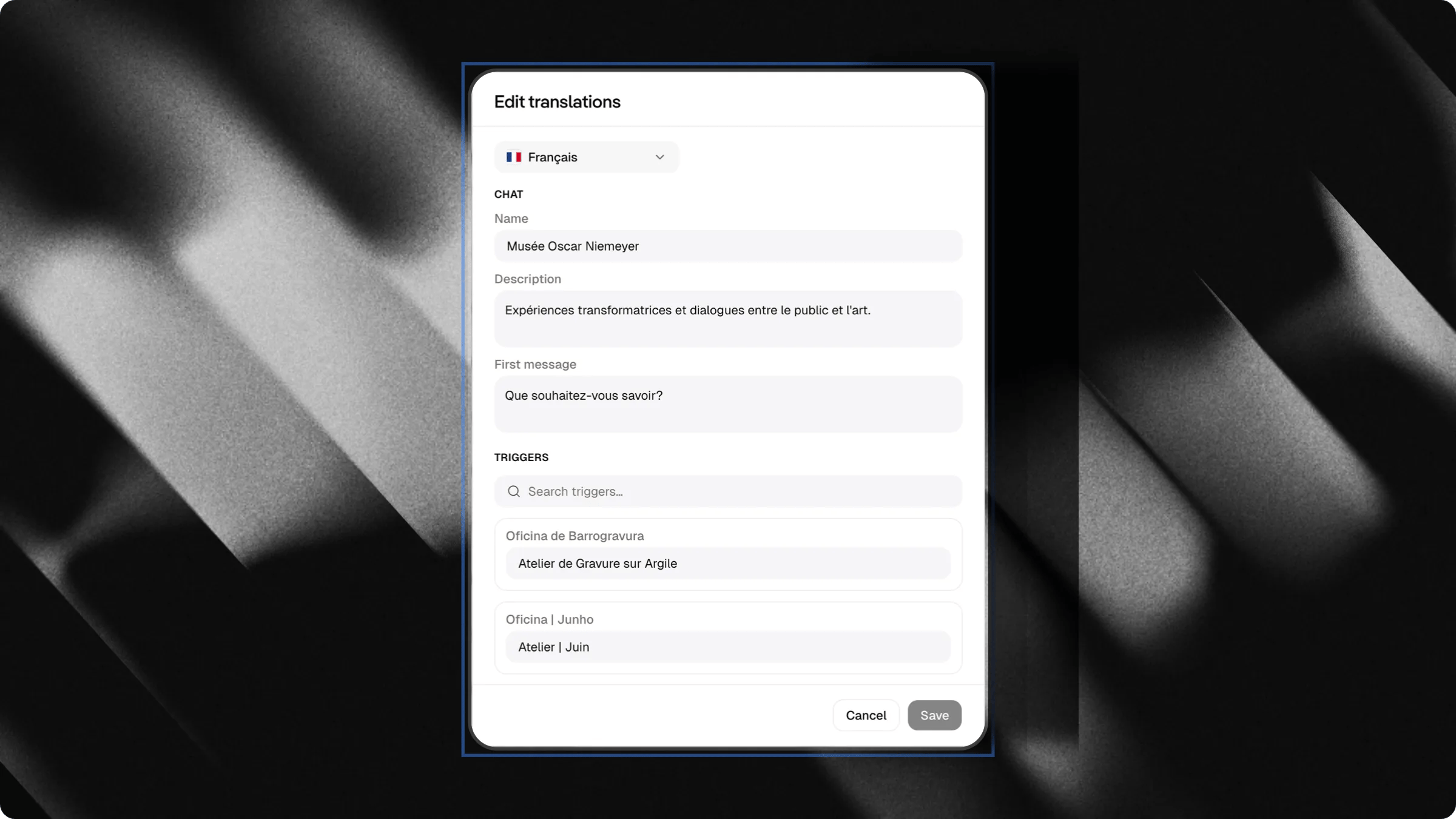 4. Select the language you want to adjust.
5. Edit any of the fields: chat name, description, welcome message, or trigger labels and questions.
6. Click **Save**.
Changes are saved immediately and take effect the next time a visitor opens the chat in that language.
Use the search bar inside the editor to quickly find a specific trigger when you have many.
***
## No setup required
Multilingual support is active for all chats on all plans. There is nothing to configure or enable.
Your content is translated automatically each time you save a trigger or update your chat profile.
Write your content naturally in your own language. Attlas handles the translations.
4. Select the language you want to adjust.
5. Edit any of the fields: chat name, description, welcome message, or trigger labels and questions.
6. Click **Save**.
Changes are saved immediately and take effect the next time a visitor opens the chat in that language.
Use the search bar inside the editor to quickly find a specific trigger when you have many.
***
## No setup required
Multilingual support is active for all chats on all plans. There is nothing to configure or enable.
Your content is translated automatically each time you save a trigger or update your chat profile.
Write your content naturally in your own language. Attlas handles the translations.