> ## Documentation Index
> Fetch the complete documentation index at: https://attlas.so/docs/llms.txt
> Use this file to discover all available pages before exploring further.
# CRM & Contacts
> Organize, track, and manage all contacts and leads captured by your Attlas chat with table and pipeline views.
The **CRM & Contacts** section serves as a built-in CRM for managing all leads collected through your Attlas chatbots.
Whenever a visitor interacts with a lead capture trigger, fills out contact details, or books an appointment during a conversation, their information is automatically saved and organized into your workspace contacts.
***
## Accessing your contacts
To view your leads, click on the **CRM** tab located in the left-hand sidebar of your workspace.
From here, you can switch between workspace environments using the workspace selector at the top of the page.
***
## Views: Table and Pipeline (Kanban)
Attlas provides two complementary views to help you organize and process leads according to your workflow.
### Table View
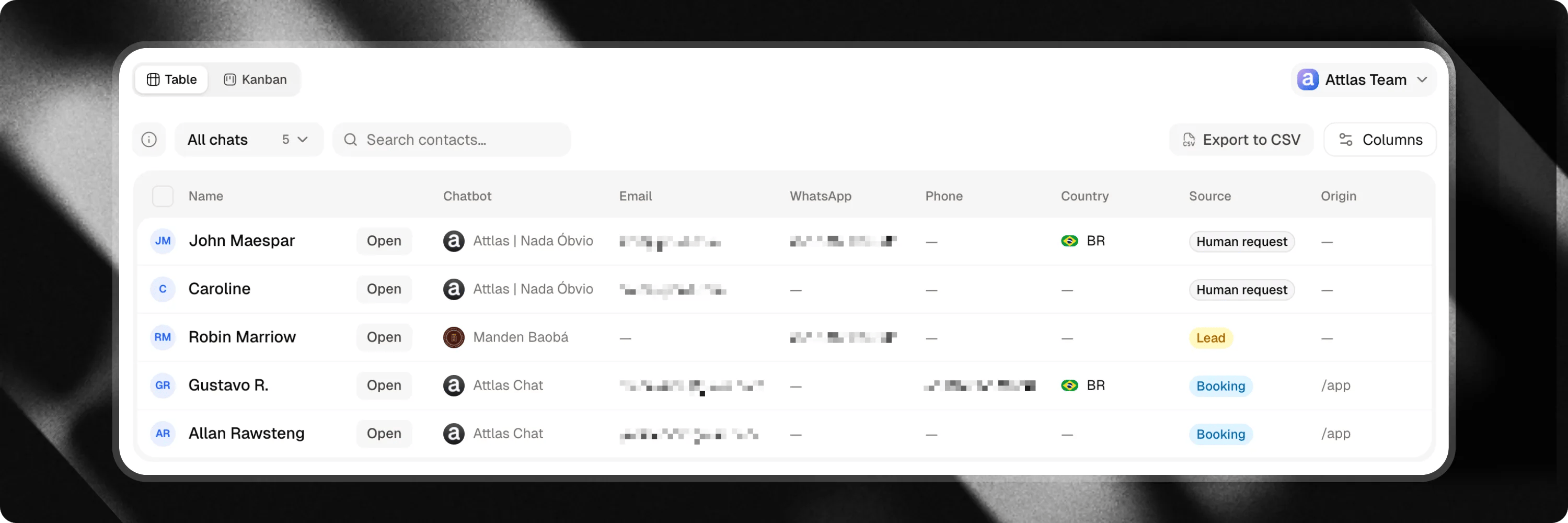 The **Table View** displays all collected leads in a structured list. It is ideal for searching, filtering, and performing batch operations on large numbers of contacts.
| Field | Description |
| :----------------- | :------------------------------------------------------------------------------- |
| **Contact Info** | Name, email address, phone number, and WhatsApp details provided by the visitor. |
| **Source Chat** | The specific chat that captured the lead. |
| **Origin Channel** | The entry point or embedded channel where the interaction took place. |
| **Language** | The language used by the visitor during the conversation. |
| **Appointment** | Scheduled calendar booking date and status (if applicable). |
| **Stage** | Current status in your sales pipeline. |
| **Date** | Timestamp when the contact was first recorded. |
#### Filtering and Exporting
* **Filter by Chatbot**: Narrow down your contact list to leads collected by a specific chatbot.
* **Search**: Locate contacts instantly by name, email, or phone number.
* **Export to CSV**: Click the **Export CSV** button to download your lead list for use in external tools like HubSpot, Salesforce, or Mailchimp.
* **Bulk Delete**: Select multiple rows to delete unwanted test entries or old contacts in bulk.
***
### Board (Kanban) View
The **Table View** displays all collected leads in a structured list. It is ideal for searching, filtering, and performing batch operations on large numbers of contacts.
| Field | Description |
| :----------------- | :------------------------------------------------------------------------------- |
| **Contact Info** | Name, email address, phone number, and WhatsApp details provided by the visitor. |
| **Source Chat** | The specific chat that captured the lead. |
| **Origin Channel** | The entry point or embedded channel where the interaction took place. |
| **Language** | The language used by the visitor during the conversation. |
| **Appointment** | Scheduled calendar booking date and status (if applicable). |
| **Stage** | Current status in your sales pipeline. |
| **Date** | Timestamp when the contact was first recorded. |
#### Filtering and Exporting
* **Filter by Chatbot**: Narrow down your contact list to leads collected by a specific chatbot.
* **Search**: Locate contacts instantly by name, email, or phone number.
* **Export to CSV**: Click the **Export CSV** button to download your lead list for use in external tools like HubSpot, Salesforce, or Mailchimp.
* **Bulk Delete**: Select multiple rows to delete unwanted test entries or old contacts in bulk.
***
### Board (Kanban) View
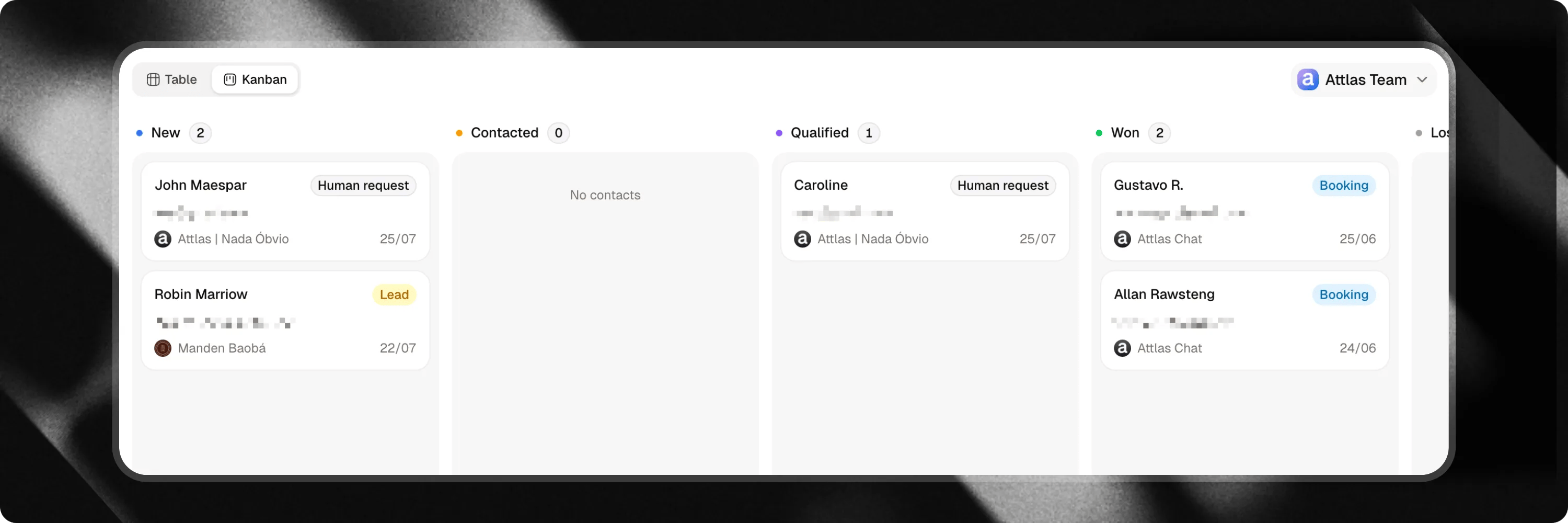 The **Board View** organizes your leads into visual columns representing your sales pipeline. This view gives you a clear overview of deal progress and helps prioritize follow-up activities.
Leads move through 5 customizable status stages:
| Stage | Description |
| :------------ | :------------------------------------------------------------ |
| **New** | Newly captured leads that require initial review or outreach. |
| **Contacted** | Leads you or your team have reached out to. |
| **Qualified** | Leads that meet your criteria and show clear interest. |
| **Won** | Successfully converted leads or closed deals. |
| **Lost** | Leads that did not convert or were archived. |
You can drag and drop lead cards between stage columns to update their pipeline status instantly.
***
## Contact details and conversation history
The **Board View** organizes your leads into visual columns representing your sales pipeline. This view gives you a clear overview of deal progress and helps prioritize follow-up activities.
Leads move through 5 customizable status stages:
| Stage | Description |
| :------------ | :------------------------------------------------------------ |
| **New** | Newly captured leads that require initial review or outreach. |
| **Contacted** | Leads you or your team have reached out to. |
| **Qualified** | Leads that meet your criteria and show clear interest. |
| **Won** | Successfully converted leads or closed deals. |
| **Lost** | Leads that did not convert or were archived. |
You can drag and drop lead cards between stage columns to update their pipeline status instantly.
***
## Contact details and conversation history
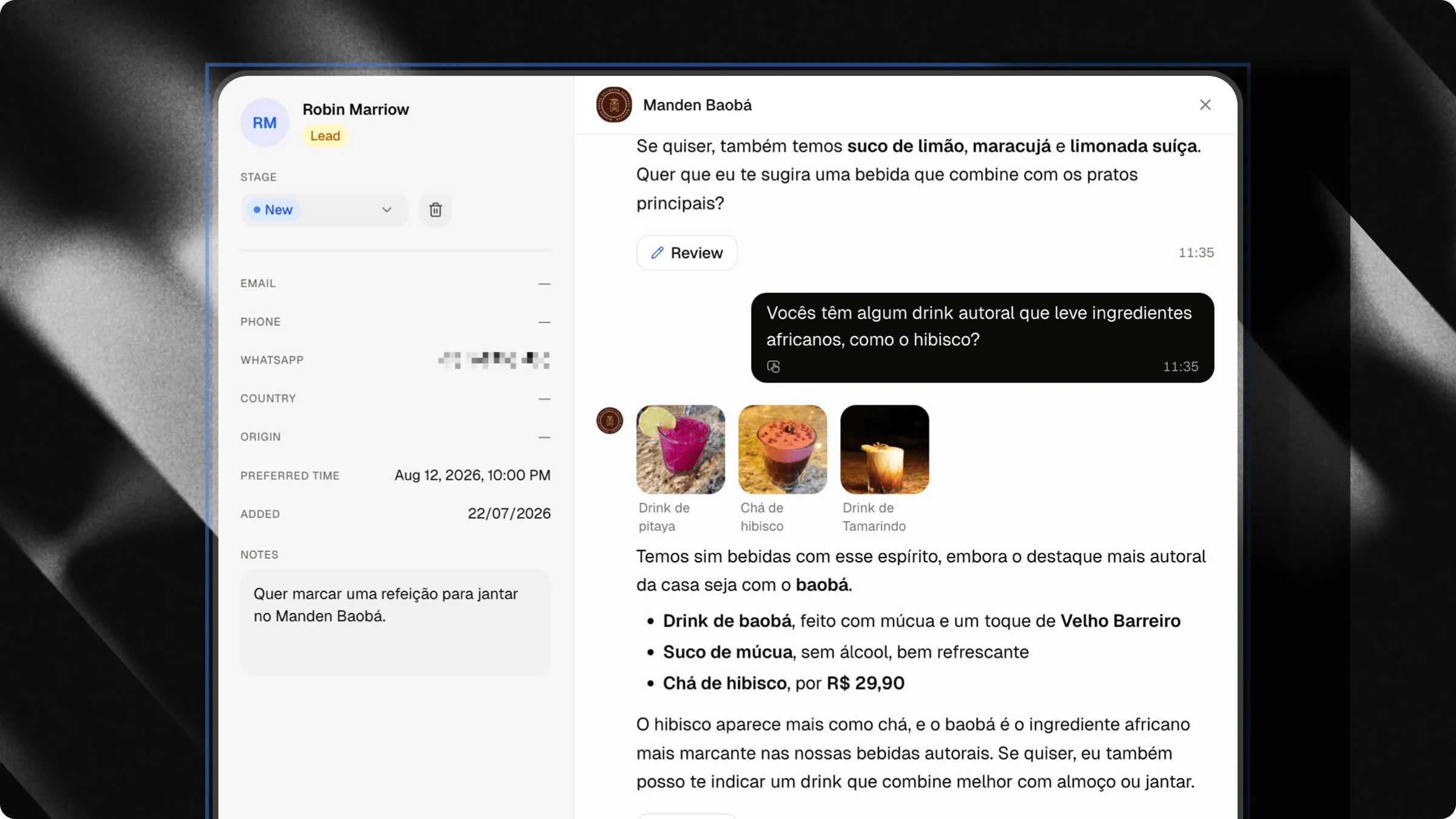 Clicking on any contact in either Table or Board view opens the detailed contact modal.
### Lead Details and Notes
* **Edit Pipeline Stage**: Change stage status directly from the dropdown menu.
* **Add Notes**: Keep context-rich notes for your team (for example, specific customer requirements or call summaries). Notes save automatically.
* **Appointments**: Review connected calendar bookings and meeting details.
### Inspecting Conversation History
Switch to the **Conversation** tab inside the contact modal to view the exact transcript where the lead was captured. Reviewing the conversation context helps you understand visitor intent before making outreach.
***
## Data privacy and encryption
Attlas protects your visitors' sensitive contact details by default.
Personally Identifiable Information (PII) such as email addresses, phone numbers, and WhatsApp numbers are encrypted at rest on Attlas servers. They are decrypted securely on-the-fly only when authorized workspace members view the contacts interface.
Clicking on any contact in either Table or Board view opens the detailed contact modal.
### Lead Details and Notes
* **Edit Pipeline Stage**: Change stage status directly from the dropdown menu.
* **Add Notes**: Keep context-rich notes for your team (for example, specific customer requirements or call summaries). Notes save automatically.
* **Appointments**: Review connected calendar bookings and meeting details.
### Inspecting Conversation History
Switch to the **Conversation** tab inside the contact modal to view the exact transcript where the lead was captured. Reviewing the conversation context helps you understand visitor intent before making outreach.
***
## Data privacy and encryption
Attlas protects your visitors' sensitive contact details by default.
Personally Identifiable Information (PII) such as email addresses, phone numbers, and WhatsApp numbers are encrypted at rest on Attlas servers. They are decrypted securely on-the-fly only when authorized workspace members view the contacts interface.